Downloading and Updating Library Catalogs
QUESTION
How can I locate fixtures, furnishings, and other objects to place into my plans?
ANSWER
Fixtures, furnishings, and much more can all be downloaded into your Home Designer program's Library Browser. Home Designer will prompt you to install the core content library files the first time the program is launched. If you do not download the core content at that time, though, you can do so later on when it is more convenient.
In addition to the core content, select bonus and manufacturer content can be downloaded and used in your Home Designer designs.
- Downloading and installing core content
- Downloading bonus and manufacturer catalogs using the Library Browser (Applies to Home Designer 2024 and newer versions)
- Downloading bonus and manufacturer catalogs using the Home Designer website
-
Updating installed library content
Core, bonus, and manufacturer catalogs are available for download for the 5 most recent program versions of Home Designer.
To download and install core content
- The Library Browser side window is docked on the right side of the program window by default. You can open and close it by selecting View> Library Browser
 from the menu.
- Select Library> Install Core Content from the menu.
In Home Designer 2026 and newer versions, you may also see a button within the Library Browser called Install Core Content if the core catalogs are empty.
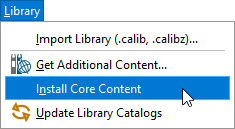
The core catalogs contain a lot of data, which may take some time to download. A progress indicator will display at the bottom of the Library Browser side window, if it is open.
- When the Core Catalogs have been completely installed, a Catalog Update Summary dialog or an Information dialog will display. Click OK.
Note: If you receive an error message during this process, or you're unable to download the core catalogs using this method, please visit the "Troubleshooting Library Download Issues" resource located in the Related Articles section below.
To download bonus and manufacturer libraries using the Library Browser*
*Applies to Home Designer 2024 and newer versions.
- Within the Library Browser side window, ensure that the Include Web Results
 option is enabled next to the Filters search bar.
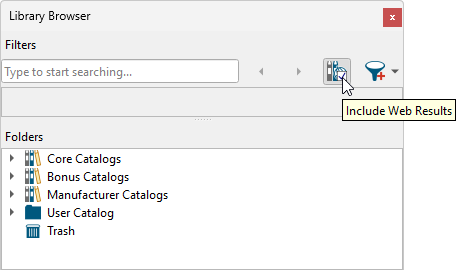
- Bonus and manufacturer catalogs can be accessed using one of the following methods:
- Expand the Bonus Catalogs and/or Manufacturer Catalogs subfolder(s), then select the View Online Catalogs
 option. Proceed to browse through the list of online catalogs that pertain to the parent folder until you have found a particular object or catalog that you're interested in.
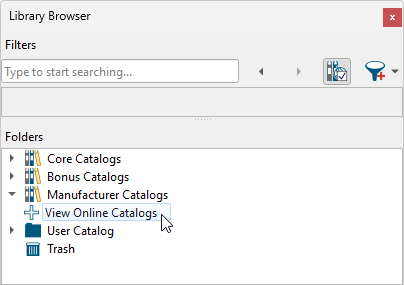
- Using the search bar, search for a manufacturer or an object that you want to use in your plan.
In the Filter Results area, objects that are installed in your library will display with the following icon and will appear in the list first, while objects that are not installed will display with a globe icon
  and will appear at the bottom of the list.
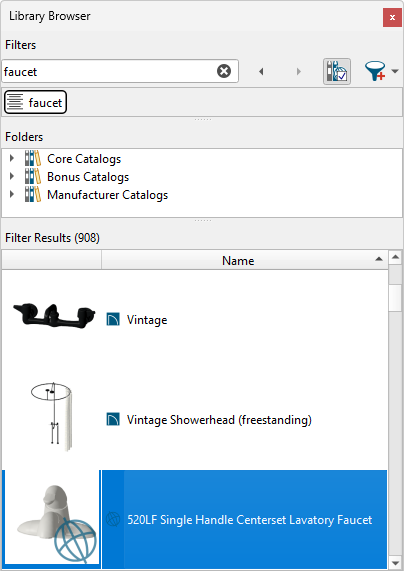
- Expand the Bonus Catalogs and/or Manufacturer Catalogs subfolder(s), then select the View Online Catalogs
- Select an object or online catalog that is not installed, then look in the Details section located at the bottom of the Library Browser to see additional information.
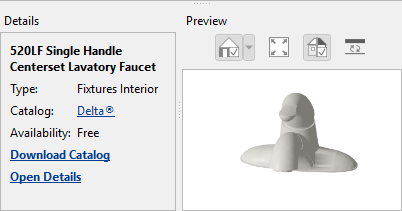
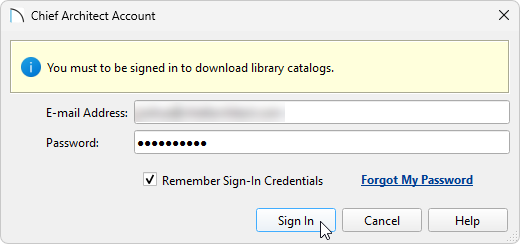
- Click on the Download Catalog link located in the Details section, or right-click on the object/catalog and choose the Download Catalog option to prompt a Chief Architect Account dialog to appear. Enter the e-mail address and password associated with your Chief Architect account, then click Log In.
Note: If you're already signed in to your Chief Architect account within the software, this Login dialog won't appear. Instead the catalog will be downloaded and you will be greeted with an Information message once it has completed.
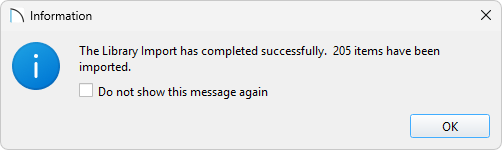
- If you have logged in successfully, you will receive a message stating so. Click OK. The library download will now take place in the background. Once it has completed, an Information message will display advising that "The Library Import has completed successfully..." followed by the number of items that have been imported. Click OK.
To download bonus and manufacturer catalogs using the Home Designer website
- Select Library> Get Additional Content Online from within the software.
You can also access the 3D Library from the Home Designer website by navigating to User Center> Catalog & Content Downloads or from within your Chief Architect account by navigating to Home Designer> Catalog Downloads.
- In the top right corner, click on Log In To Download and proceed to sign in to the Chief Architect account associated with your Home Designer program.
If you're already signed in, your Chief ID will be listed alongside a Log Out option instead. If you do not have a Chief Architect account, please see the "Creating a Chief Architect Account" resource in the Related Articles section below or contact our Customer Service team.
Note: Once logged in, be sure to select the correct Product and Version using the filtering options in the top right corner, as each catalog is designed to work with specific programs only. If you download and import a catalog that was not intended for your program, it may install successfully, but its content will not be available to use.
- Click on a library category to expand the contents, then click on a catalog thumbnail image to go to a full overview page of a specific catalog, or mouse over the Info
 symbol for a summary of details.
- Once you have located a catalog that you want to download, click on the Download Arrow
 icon or the Download
  button, then click on the Home Designer version you're using.
Note: Catalog availability will vary based on the product and version you're using. For example, all available Home Designer catalogs are included at no additional cost to Home Designer 2026 and newer users; however, several of these catalogs are also available for purchase if you're using a perpetual legacy license.
- Depending on your web browser, you will be prompted to either Open or Save the library file.
Some web browsers will automatically download and open a file, and some will automatically save the file to your computer.
If you're unsure where the downloaded library file may have gone, check the Downloads folder on your system.
- If you chose to Open the file, it should start the download and import process into Home Designer automatically.
Note: If the catalog fails to import into the program automatically, please follow the steps in the "Associating Project, Plan, Layout, and Library Files with the Latest Version of Chief Architect or Home Designer" resource located in the Related Articles section below. Once you have followed the steps in the article, repeat Steps 4 - 6 above.
If you chose to Save the file, then you will need to import the library manually. Select Library> Import Library from within the Home Designer program and then browse to where you saved the library file. Typically, this will be your Downloads folder on your system. Select the .calibz file, choose Open, and the library will then be imported into your Library Browser. If you choose to use this process to import libraries, you can group select multiple library files on your system and import them all at once.
- Once one or more libraries have been imported, an Information message will display advising that "The Library Import has completed successfully..." followed by the number of items that have been imported. Click OK.
To update installed library content
Core, bonus, and manufacturer catalogs are updated periodically by the Chief Architect Content Development team to include new and improved content. Additionally, when product manufacturers update product lines, Chief Architect content may also be updated to align with these changes.
- Navigate to Library> Update Library Catalogs
 from the menu or select the Update Library Catalogs tool at the bottom of the Library Browser to update all of the catalogs.
You may see the following icon next to a parent folder, as well as in the top left corner for the applicable child folders/catalogs when an update is available. Follow the process just mentioned in Step 1 above, or right-click on the line item displaying the icon and select Update , as shown in the image below.
Note: On a Mac, hold down the Control key while clicking to initiate a right-click command. More information about right-click commands on Apple input devices can be found in the following Apple resource: Right-click on Mac.
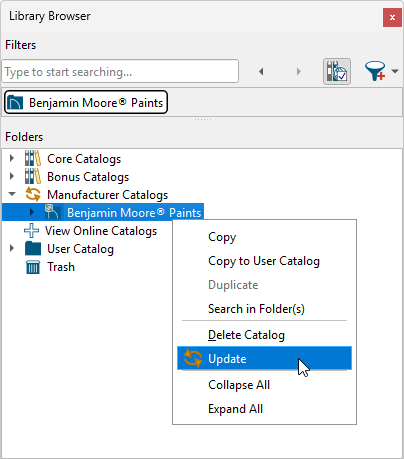
- The program will gather information about the installed content, then download any available updates. Once the update process has completed, one of the following dialogs will display:
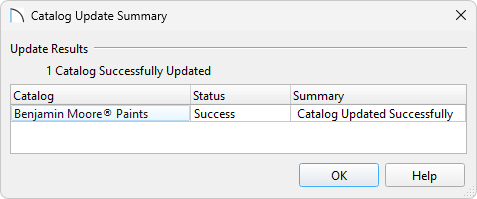
- If catalogs were updated, you will see a Catalog Update Summary dialog with additional information as to which catalogs were updated. Click OK.
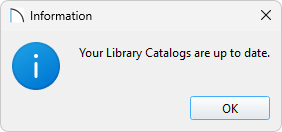
- If catalogs were already up to date, you will see an Information dialog stating so. Click OK.
Note: If you encounter an error message during this process or the catalog update fails, please refer to the Related Articles section below for additional resources that may be of assistance, or contact us.
- If catalogs were updated, you will see a Catalog Update Summary dialog with additional information as to which catalogs were updated. Click OK.