Creating Solid Precast Concrete Stairs
QUESTION
I need to create and use some solid precast concrete stairs for my design. How do I create these in Chief Architect?
ANSWER
Solid precast concrete stairs can be modeled using the Stair tool, which can then be added to your library browser for feature use.
To create solid precast concrete stairs
- Navigate to Build> Stairs> Draw Stairs
 and click and drag to create a staircase.
- Select your staircase using Select Objects
 tool, then click on the Open Object
  edit tool.
- In the Exterior Staircase Specification, on the General panel:
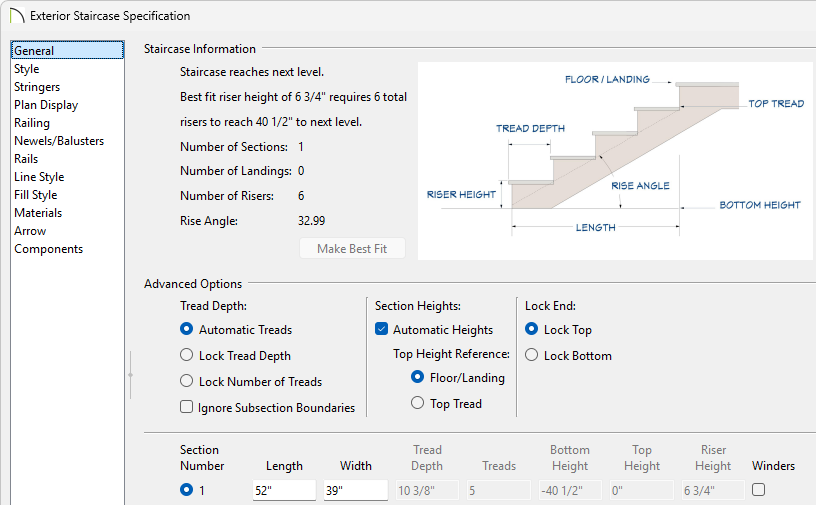
- Adjust the Length and Width of the staircase.
- You can switch from Automatic Treads to either Lock Tread Depth or Lock Number of Treads to manually control your tread information.
- You can uncheck Automatic Heights to manually control your staircase Bottom Height, Top Height, and the Riser Height.
Take note of the Top/Bottom Height, as we will use this information on the Stringers panel.
It is recommended to keep Automatic Treads and Automatic Heights enabled until you have your stairs correctly positioned.
- Adjust the Length and Width of the staircase.
- On the Style panel:
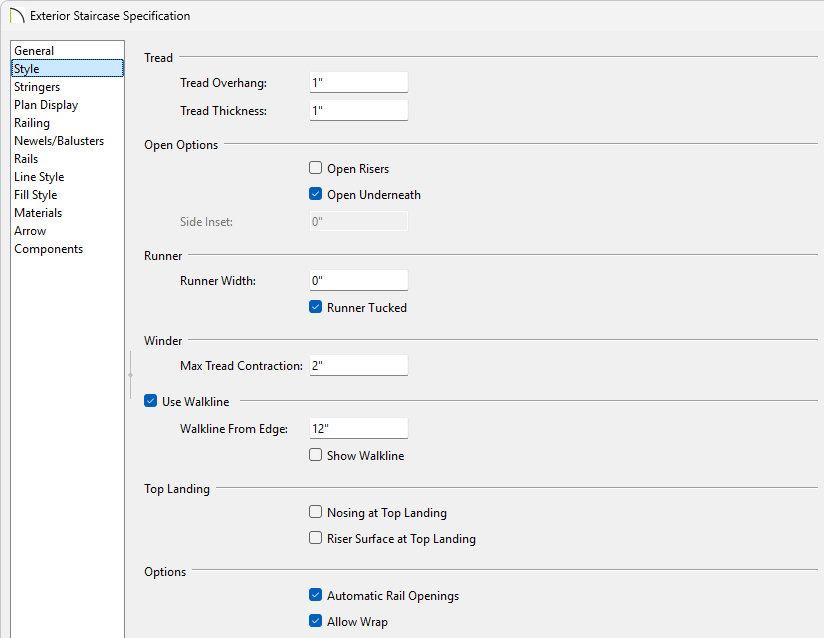
- Adjust the Tread Overhang and Tread Thickness to your liking.
- Uncheck the Open Risers and keep the Open Underneath checkbox checked.
- Adjust the Tread Overhang and Tread Thickness to your liking.
- On the Stringers panel:
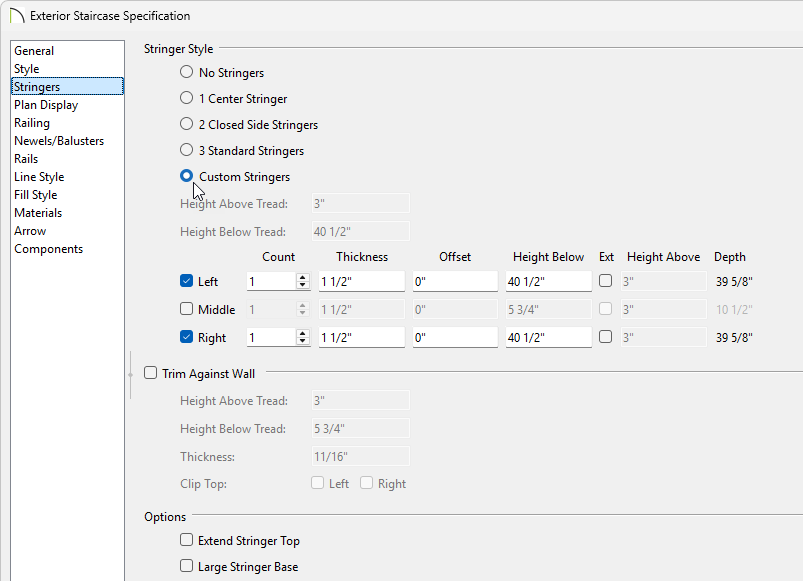
- Set your Stringer Style to Custom Stringers and enable both the Left and Right stringers.
If using a 0" Tread Thickness, set the Stringer Style to No Stringers, and set the Height Below Tread to the Top/Bottom Height value that is reported on the General panel.
- Set your Height Below to the Top/Bottom Height value that is reported on the General panel.
- To have stringers that rise above the stairs, check the Ext checkbox and specify the extension value.
- Uncheck the Trim Against Wall checkbox.
- Set your Stringer Style to Custom Stringers and enable both the Left and Right stringers.
- On the Railing panel, you can control the railing style or turn the railing off entirely.
- On the Newels/Balusters panel, you can customize your railing and adjust its offset to align it on your stringers.
- On the Materials panel:
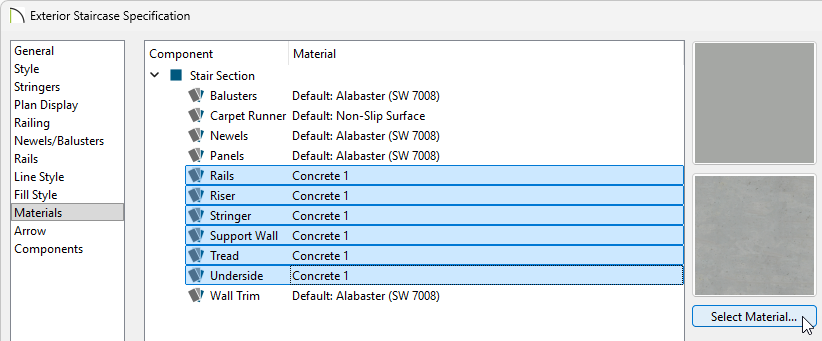
- While holding the Shift key on your keyboard, select the Riser list item and then select the Underside list item to group select multiple components.
- Click Select Material to open the Select Material dialog.
- Select an appropriate concrete material and click OK.
Concrete materials can be found by navigating to Core Catalogs> Materials> Concrete.
- While holding the Shift key on your keyboard, select the Riser list item and then select the Underside list item to group select multiple components.
- Click OK to close the dialog and save your changes.
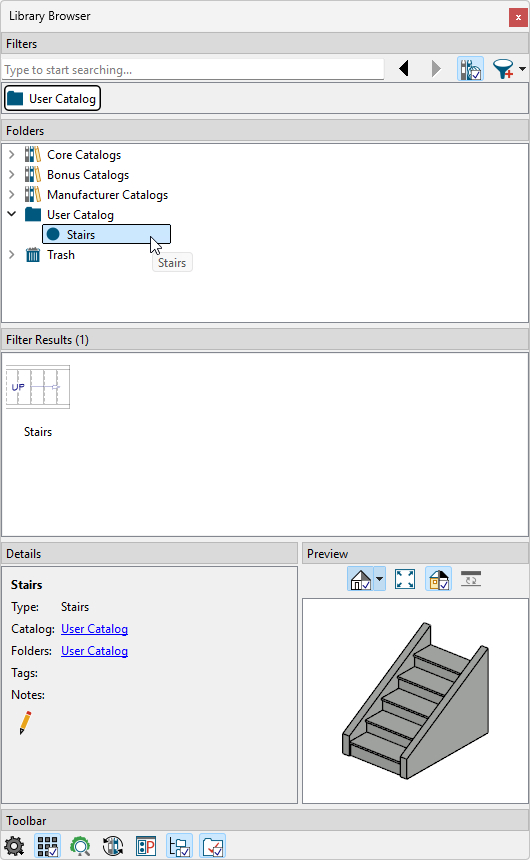
- Using the Select Objects tool, click on your staircase to select it and use the Add to Library
 * edit tool to add the staircase to your User Catalog for future use.
*Applies to Chief Architect Premier X16 and newer. Not Available in Home Designer.
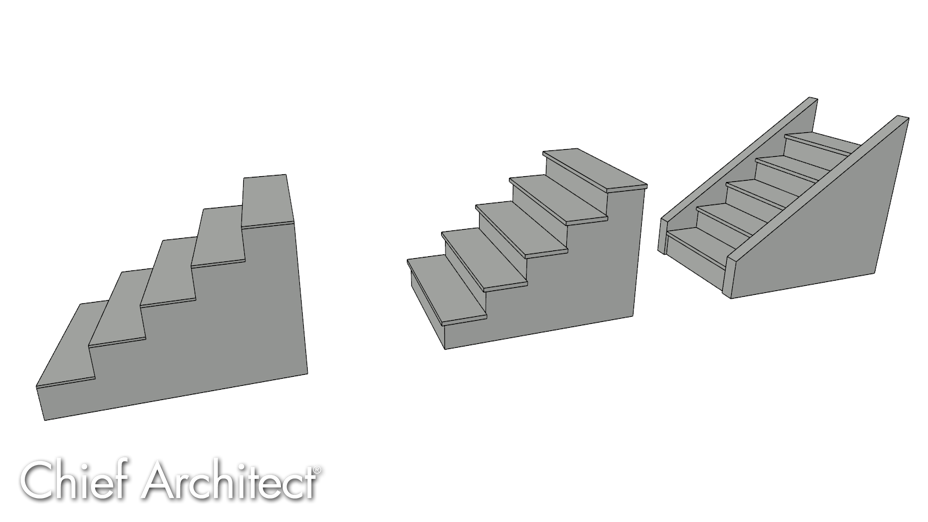
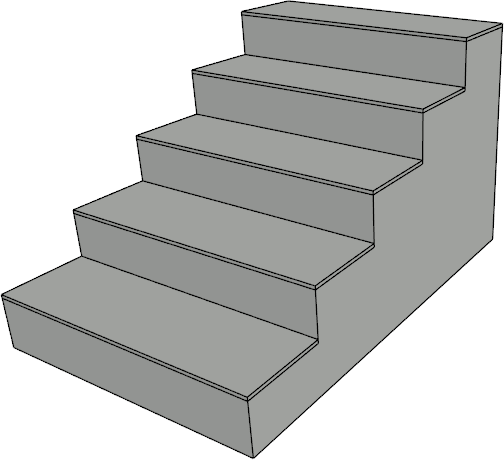
By changing the settings on these panels, you can create various different styles of stairs.
For example, this style of staircase was created by setting the Tread Overhang to 0" and setting the Stringers to No Stringers.
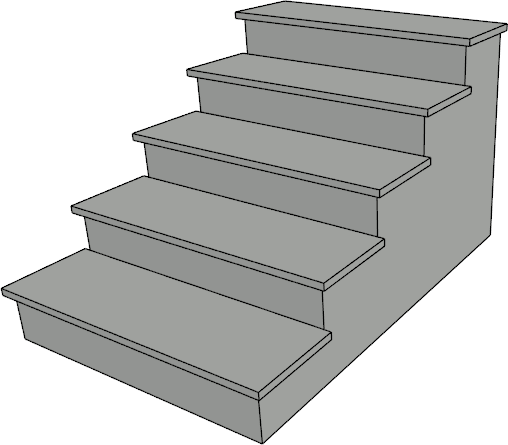
The staircase shown below is using a 1" Tread Overhang and a 1" Tread Thickness.
The staircase shown below was created by using Custom Stringers and setting both the Left and Right Stringer to have a 3" Extension above the tread.
