Creating a Floating Staircase
Reference Number:
KB-03239
Last Modified:
March 5, 2026
QUESTION
How can I create a floating staircase?
ANSWER
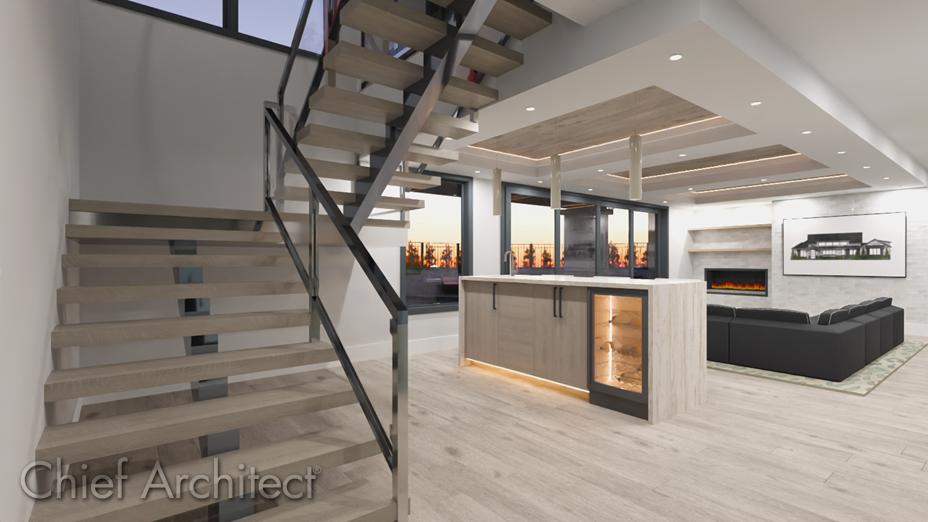
A floating staircase can easily be created by customizing the stringer, tread, and railing settings associated with a staircase.
To create a floating staircase
- In your desired plan, navigate to Build> Stairs
 , select your desired Stair tool, then create the staircase that will be a floating staircase.
- With the staircase created, Select
 it, then click the Open Object
  edit tool.
- In the Staircase Specification dialog that displays:
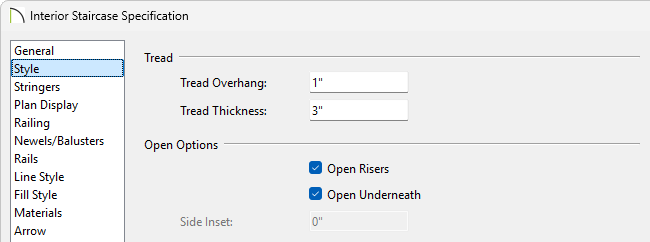
- On the Style panel, specify your desired Tread Overhang and Tread Thickness, then ensure that the Open Risers and Open Underneath boxes are both checked.
In this example, the Tread Thickness is changed from the default value of 1" to 3".
- On the Stringers panel, specify your desired Stringer Style, as well as other settings such as the wall trim and stringer options.
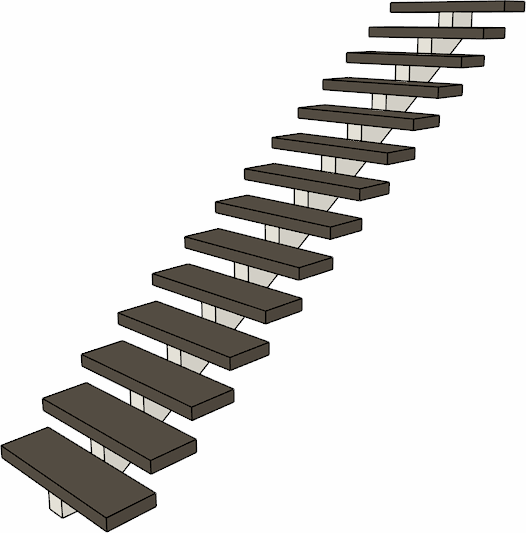
In this example, the 1 Center Stringer option is selected. However, you can choose No Stringers to remove all stringers from the staircase, or Custom Stringers to specify a fully custom stringer configuration.
- Access the Railing, Newels/Balusters, and Rails panels to adjust properties associated with the stair railings.
- On the Style panel, specify your desired Tread Overhang and Tread Thickness, then ensure that the Open Risers and Open Underneath boxes are both checked.
-
Make any other desired modifications to your staircase, then click OK.
-
Take a Camera
 view to see the results.
- If you intend to use this staircase in another plan, first select the stair, then click the Add to Library*
 edit tool to add the individual stair section to the User Catalog. Landings cannot be added to the User Catalog.
*Applies to Chief Architect Premier X16 and newer versions.
Related Articles