Stacking Appliances in Cabinets in Home Designer
Pro | Architectural | Suite
QUESTION
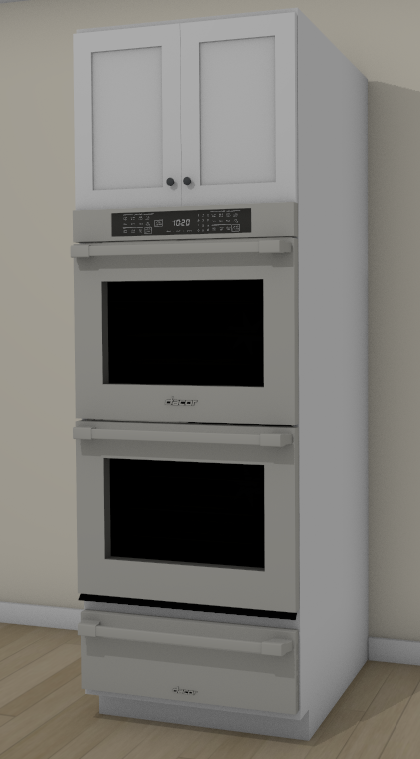
I would like to stack a wall oven onto a warming drawer within a full height cabinet. How can I accomplish this?
ANSWER
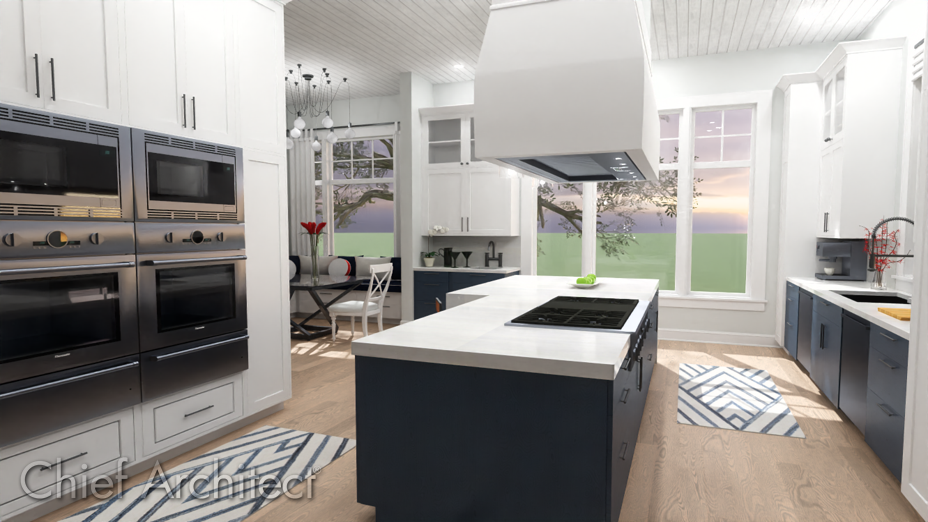
Some stacked appliances, such as stacked wall ovens, can be located in the Library Browser and can be inserted directly into a cabinet; you can also place individual appliances into cabinets to create your own stacked configuration.
In Home Designer 2026 and newer, as well as in Home Designer Pro (legacy), multiple appliances can be inserted into a single cabinet by utilizing the Front panel of the Cabinet Specification dialog.
In Home Designer Architectural (legacy) and Home Designer Suite (legacy), you must create separate cabinets with each containing a separate appliance to give them the appearance of being in a single cabinet.
Note: The appliances used in this resource are part of the Dacor manufacturer catalog. To learn more about obtaining additional catalogs, please see KB-00048: Downloading and Updating Library Catalogs
Select the appropriate link for the product and version you're using:
- Creating stacked appliances in Home Designer 2026 and newer and Home Designer Pro (legacy)
- Creating stacked appliances in Home Designer Architectural (legacy) and Home Designer Suite (legacy)
Creating stacked appliances in Home Designer 2026 and newer and Home Designer Pro (legacy)
- Use the Select Objects
 toolto select the cabinet you'd like to insert multiple appliances into, then click the Open Object
  edit button.
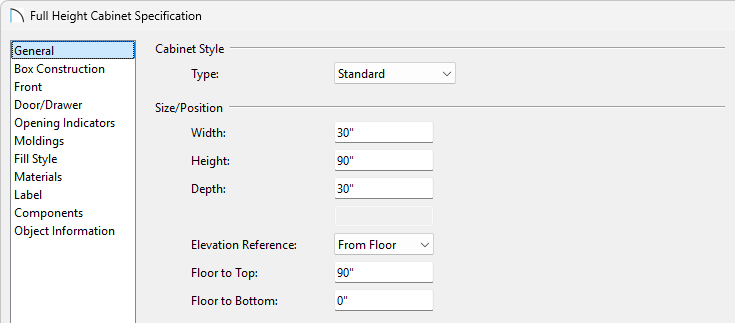
- On the General panel of the Full Height Cabinet Specification dialog, specify the Width, Height, Depth and Floor to Bottom values for the cabinet so that it can accommodate the appliances you'd like to insert.
In this example, we are using a Full Height Cabinet that has a Width of 30", a Height of 90", a Depth of 30", and a Floor to Bottom value of 0" since this cabinet sits flat on the ground.
Note: The cabinet must be wide enough and deep enough for the appliance to fit into. You can check an appliance's dimensions by copying it to your user catalog and opening its specification dialog. You can also resize the appliance in this dialog to fit a desired cabinet.
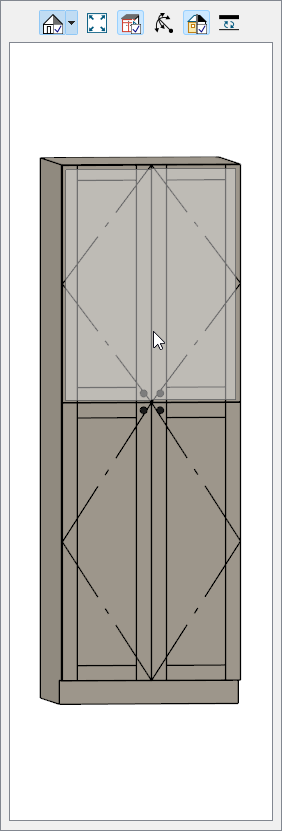
- On the Front panel of the Full Height Cabinet Specification dialog, click on the top face item in the 3D preview on the right side of the dialog.
In this example, it is a Door - Auto Right face item.
- With this face item selected, change the Item Height to your desired value.
In this example, a value of 14" is specified.
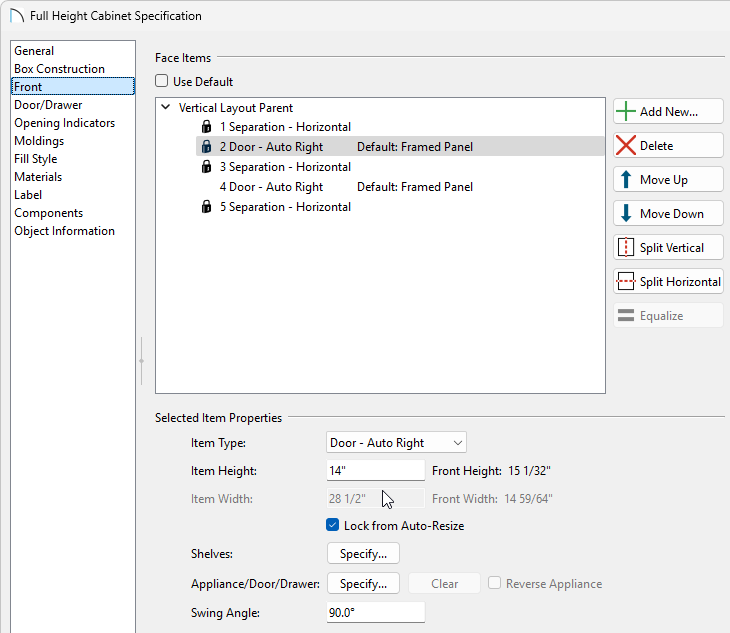
- Next, click the Add New button to add additional sections to the cabinet.
Note: Clicking 'Add New' will insert a new Face Itembelow the currently selected item. If there is no current selection,the new Face Item will be added to the bottom.
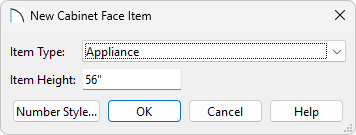
- In the New Cabinet Face Item dialog, specify the Item Type as Appliance, set an Item Height, then press OK.
In this example, we have added one new Appliance Face Item with a Height value of 56".
Note: While the cabinet must be wide enough and deep enough to accommodate the appliance, appliances will automatically adjust to fit the height of the opening they are placed in.
- With the new Appliance Face Item created and selected, click on the Specify button next to Appliance/Door/Drawer to open the Select Library Object dialog, and browse the library for a desired appliance to insert.
In this example, we browsed to Manufacturer Catalogs> Dacor> Wall Ovens and selected the HWO230P Heritage 30" Pro Double Wall Ovens.
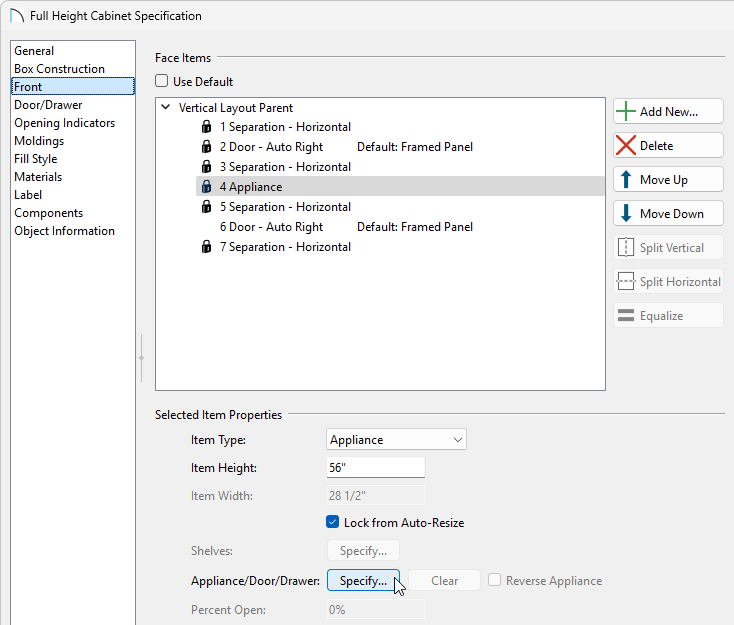
- Add additional appliances to the cabinet by selecting the Add New button, or change an existing face item to be an Appliance by using the Item Type drop-down.
In this example, we selected the Door - Auto Right face item at the bottom of the cabinet, changed its Item Type to be an Appliance, and then clicked the Specify button next to Appliance/Door/Drawer to select the HWD30PS Heritage 30" Pro Warming Drawer from the library.
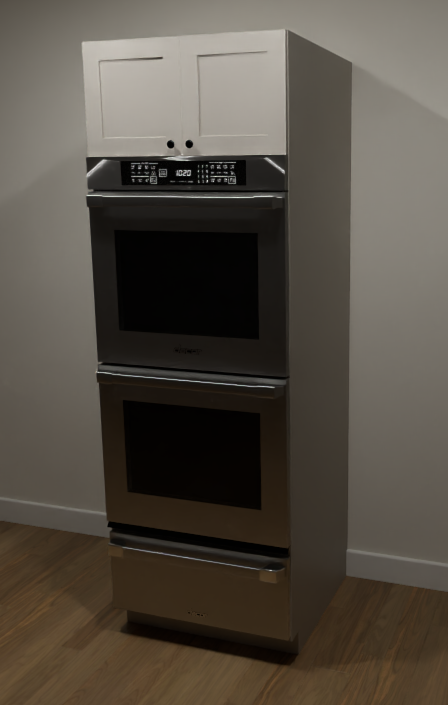
- Take a Camera
 view to see the results.
Creating stacked appliances in Home Designer Architectural (legacy) and Home Designer Suite (legacy)
- Navigate to Build> Cabinet> Full Height Cabinet
 , click in your plan to place it, then Select it and Open it to specification.
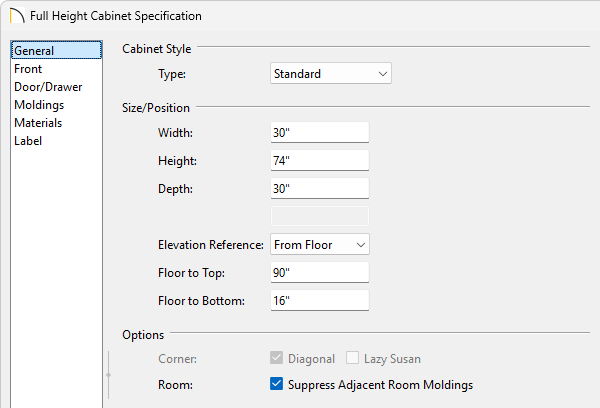
- On the General panel of the Full Height Cabinet Specification dialog, specify the Width, Height, Depth and Floor to Bottom values for the cabinet so that it can accommodate the double wall oven that will be inserted, then click OK.
In this example, a Width of 30", a Height of 74", a Depth of 30", and a Floor to Bottom value of 16" are specified. Note that the Floor to Bottom value will not be sitting on the floor as the warming drawer will need to be inserted into a separate cabinet.
- Access the Library Browser
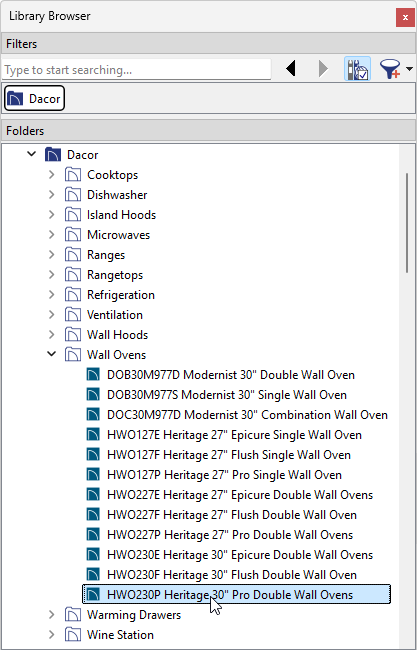
 , browse to and select the desired appliance, then click on the full height cabinet in either a 3D view or plan view to insert the appliance into the cabinet.
In this example, we are using the HWO230P Heritage 30" Pro Double Wall Ovens library object, which can be accessed by browsing to Manufacturer Catalogs> Dacor> Wall Ovens.
If the Library Browser side window is not visible nor accessible, navigate to View> Library Browser from the menu to toggle its display.
- Using the Select Objects tool, click on the cabinet to select it, then click on the Open Object edit button once again.
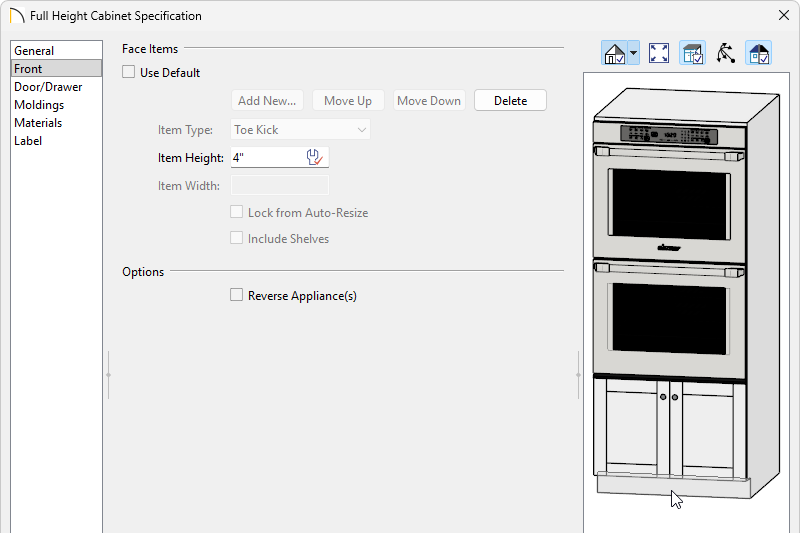
- In the Full Height Cabinet Specification dialog, click on the toe kick face item within the 3D preview, which will take you to the Front panel, then click the Delete button to remove the face item from the cabinet.
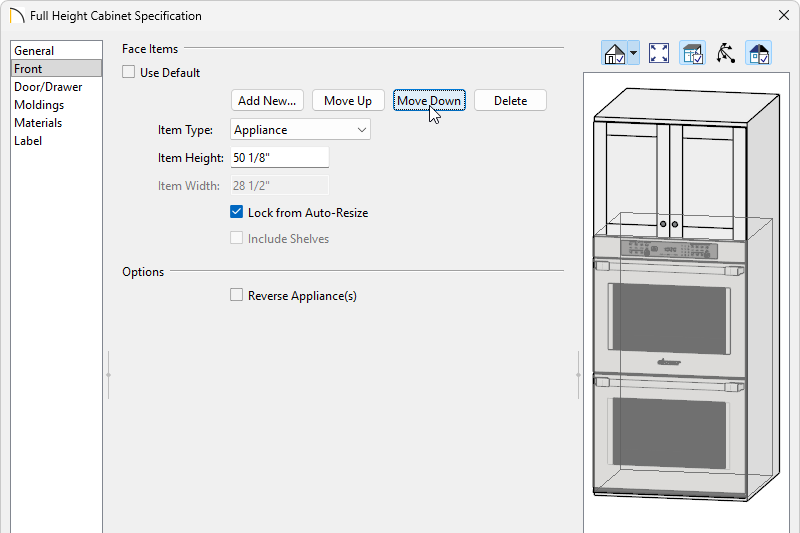
- Staying on the Front panel, click on either the double doors or the appliance, then use the Move Up/Move Down buttons to change the order of the items. Make any other desired changes, such as to the Item Heights of the face items, then click OK.
- Next, navigate to Build> Cabinet> Base Cabinet
 , click in the plan to place it beside the full height cabinet, then Select it and Open it to specification.
- On the General panel of the Base Cabinet Specification, specify the Width, Height, Depth and Floor to Bottom values for the cabinet, uncheck the Countertop box, then click OK.
In this example, a Width of 30", a Height of 16", a Depth of 30", and a Floor to Bottom value of 0" are specified.
- Once again, access the Library Browser , browse to and select the desired appliance, then click on the base cabinet in either a 3D view or plan view to insert the appliance into the cabinet.
In this example, we are using the HWD30PS Heritage 30" Pro Warming Drawers library object, which can be accessed by browsing to Manufacturer Catalogs> Dacor> Warming Drawers.
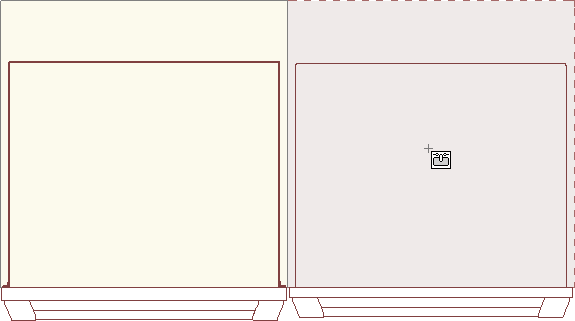
- In your preferred view of choice, Select the base cabinet, then use the Move
 edit handle to move it so that it's in the same X and Y location as the full height cabinet so that it simulates the look of a single cabinet.
In the legacy Home Designer Architectural product, cabinets can be blocked together using the Make Architectural Block edit tool. To learn more, please see the Related Articles section below.