Adding Hyperlinks to Text in Home Designer
Pro | Architectural | Suite
QUESTION
I would like to add hyperlinks to text in my projects. Is this possible?
ANSWER
Hyperlinks can be added to text in Home Designer 2024 and newer versions by highlighting the text that you want to associate a link with and clicking on the Insert Hyperlink option located within the Rich Text Specification dialog.
To add hyperlinks to text
- Navigate to CAD> Text> Rich Text
 , then left click and drag to create a rich text object in your desired location.
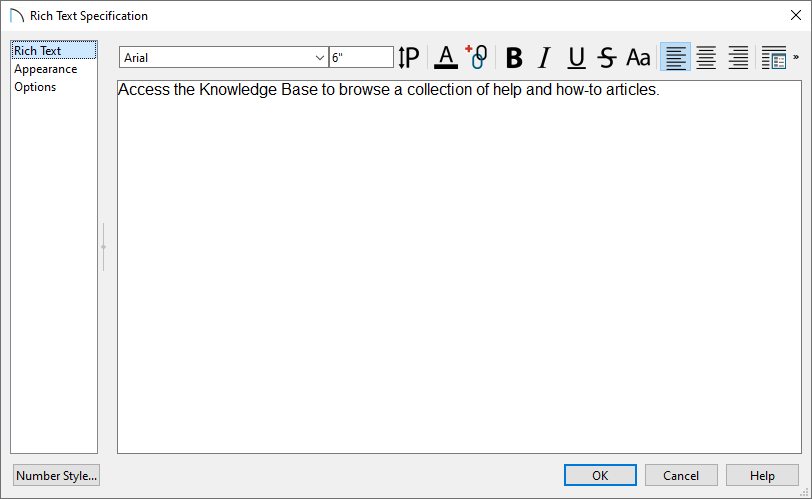
- Type in your desired text, as shown in the image below.
If you have already created a rich text object that you would like to add a hyperlink to, simply select it, then click the Open Object or Edit Rich Text in Place edit tool to display the Rich Text Specification.
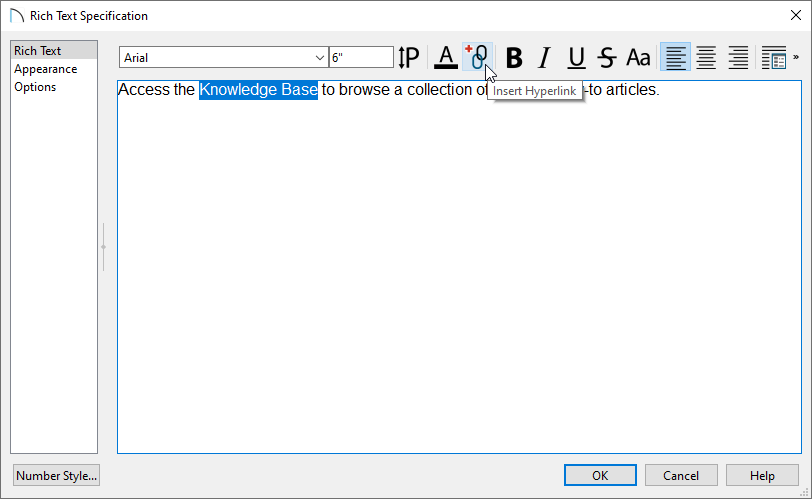
- Highlight the text that you would like to add a hyperlink to, then click the Insert Hyperlink
 option.
- In the Insert Hyperlink dialog that opens next:
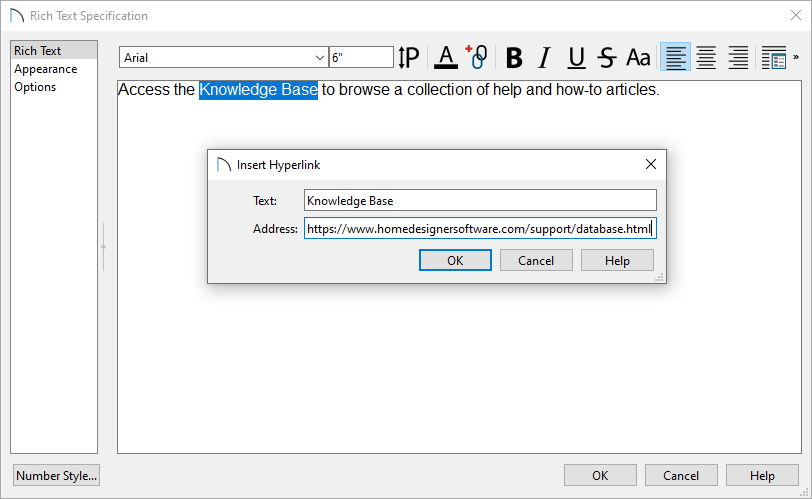
- The highlighted text will display in the Text field.
Note: If any text is selected, or if the cursor is located within an existing hyperlink when you click the Insert Hyperlink option, it will populate the Text field. If you change this initial text, the selected text will update when you click OK.
If no text is selected, but the cursor is located within an existing hyperlink when you click the Insert Hyperlink option, that hyperlink will essentially be selected: its text will populate the Text field and its address will populate the Address field.
- Use the Address field to specify a desired website address, or URL, of the page that the link will access.
If this field remains empty, the hyperlink will be removed from the highlighted text.
You can also remove a hyperlink from linked text by right-clicking and selecting Remove Hyperlink from the contextual menu while the text is in an editable state.
- Click OK.
- The highlighted text will display in the Text field.
- Click outside of the rich text box and notice that the hyperlink text is automatically underlined and assigned a non-default blue color, as shown below. Once created, though, it is editable.

- Now, if you select the rich text object and hover over the linked text, the mouse pointer will display a pointing hand
 icon, the Status Bar will report the address that it links to, and you can click once to open the link in your default web browser.