Customizing Toolbars
Pro | Architectural
QUESTION
How can I customize my toolbars to improve my workflow?
ANSWER
You can increase your productivity by customizing various settings relating to your toolbars. This article will explain how, including:
- Creating and switching between custom toolbar configurations (Applies to Chief Architect Premier and Home Designer legacy versions)
- Creating custom toolbars
- Using the Place Library Object tool
- Using the Child Tool Palette setup
-
Using the Tool Search (Applies to Chief Architect X16, Home Designer 2025, and newer program versions)
- Changing the toolbar button size
- Backing up toolbars using Traditional File Management
Creating and switching between custom toolbar configurations*
*Applies to Chief Architect Premier and Home Designer legacy versions (2025 and prior).
- With a plan open, select Tools> Toolbars and Hotkeys> Customize Toolbars
 from the menu.
In Home Designer legacy versions, navigate to Tools> Toolbars> Customize Toolbars.
- On the Configurations panel of the Toolbar Customization dialog that displays:
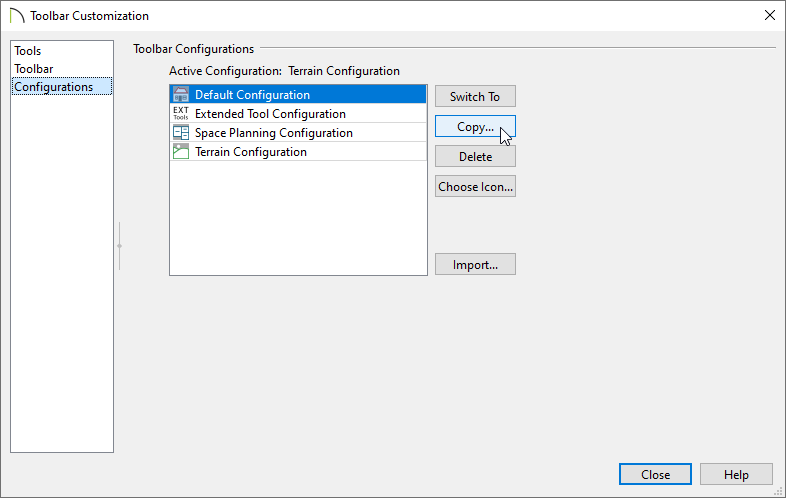
- Click on a configuration in the list that is most similar to the custom configuration that you would like to create.
Note: The available configurations may vary depending on the product and version you're using.
- With a configuration selected, click the Copy button.
- Click on a configuration in the list that is most similar to the custom configuration that you would like to create.
- In the New Toolbar Configuration dialog, type a short, descriptive name for your new configuration, then click OK.

Your new configuration is added to the Toolbar Configuration list and is also specified as the new Active Configuration.
- Select the configuration you would like to have active from the list and use the Switch To button to change to it. When you click the Close button, your new configuration will be in use.
You can also switch configurations using the toolbar buttons or by right-clicking any toolbar and selecting the configuration under Toolbar Configurations.
- With your new toolbar configuration active, make any desired changes to the program toolbars.
- Existing toolbars can be moved so that they dock to the top, bottom or either side of the Chief Architect program window, or they can float within the view window.
- You can add or remove buttons on existing toolbars or create entirely new toolbars using the Customize Toolbars dialog.
- You can customize the toolbars in all views - not just floor plan view.
- Existing toolbars can be moved so that they dock to the top, bottom or either side of the Chief Architect program window, or they can float within the view window.
- When you are satisfied with the organization of your toolbars, select File> Exit or Chief Architect/Home Designer> Force Quit from the menu to close the program.
Closing the program will save your changes to the toolbar configuration made during this program session in the .toolbar file created in Step 4, above.
Creating custom toolbars
- Select Tools> Toolbars and Hotkeys> Customize Toolbars from the menu.
In Home Designer, navigate to Tools> Toolbars> Customize Toolbars.
- On the Tools panel of the Toolbar Customization dialog, select an option using the View Type drop-down.
Note: The available View Types may vary depending on the product and version you're using.
- Your selection will determine not only what buttons are available in the Available Toolbar Buttons list, but also what view types your custom toolbar will be present in.
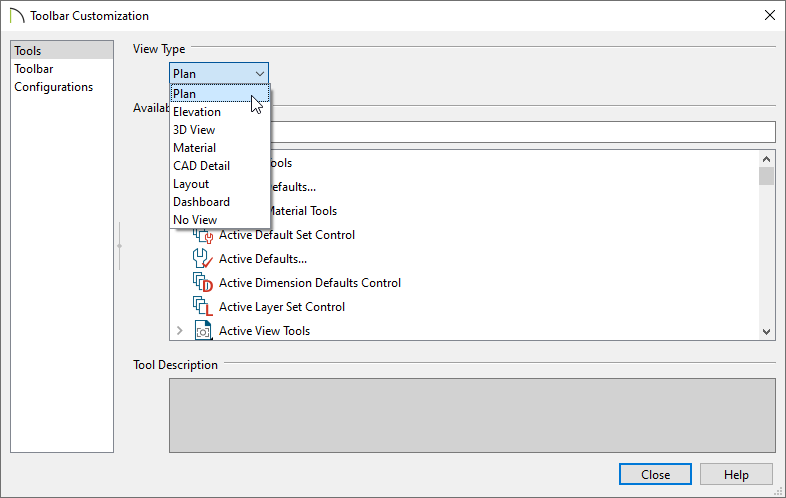
- Your selection will determine not only what buttons are available in the Available Toolbar Buttons list, but also what view types your custom toolbar will be present in.
- Still on the Tools panel, browse the list of Available Toolbar Buttons and click on a toolbar button that you would like to add to your custom toolbar.
- A description of the tool's use displays under the available buttons list.
- If the selected button is a Parent tool, you will see a small arrow
 displayed to the left of the name which can be used to expand the list of associated Child tools.
Note: If you are still unable to locate a particular tool, it may be that the feature you are looking for is actually an Edit tool, which will only be available on the Edit Toolbar when it can be applied to a selected object.
- A description of the tool's use displays under the available buttons list.
- Click on a button in the list, hold down your left mouse button and drag the selected button outside of the Toolbar Customization dialog box.
- If you drag the toolbar button to an existing toolbar, the button will be added to that toolbar when you release your mouse button.
- If you drag the toolbar button into the drawing area, a new toolbar will be created and the button will be placed in that toolbar.

- This toolbar can be dragged and docked to the top, bottom or side of the drawing area, or it can remain floating.
- Similarly, you can dock or undock existing toolbars to customize their locations as you wish at any time.
- If you drag the toolbar button to an existing toolbar, the button will be added to that toolbar when you release your mouse button.
- Continue adding toolbar buttons to your new toolbar as desired.

- To remove an item from the toolbar, click and drag the item from the toolbar and drop it into the Toolbar Customization dialog.
- To rename the toolbar, select the Toolbar panel of the Toolbar Customization dialog, select the toolbar from the list, and then click once on the name to rename it.
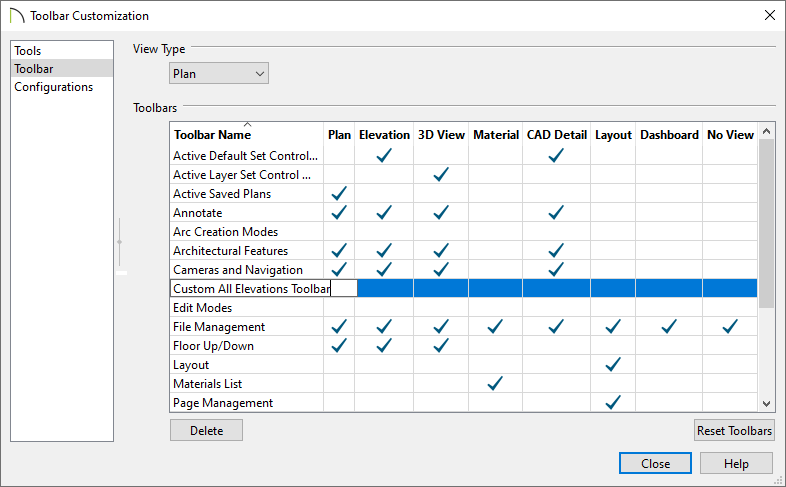
- Also on the Toolbar panel, you can choose which views you wish to see this toolbar in, by simply placing checkmarks in the appropriate columns.
Using the Place Library Object tool
The Place Library Object  tool can be added to the toolbar and customized to place a symbol from the library.
-
Place the Place Library Object tool on a toolbar by dragging it from the Toolbar Customization dialog onto the toolbar of your choice.

-
Click the Close button to close the dialog.
- Using the Select Objects
 tool, click the Place Library Object tool that was just placed to open the Library Object Button Specification dialog box.
- Click the Library button to open the Select Library Object dialog.

- Navigate through the library to the symbol you want to place using this tool, select it, then click OK.
In this example, we have selected the Composting Toilet.

- Back in the Library Object Button Specification dialog, choose your desired Button Icon, then click OK to return to the plan.

This tool is now linked to the Composting Toilet symbol located in the library and can be selected to place this object in your plan.
If the toolbar button needs to be modified at any point, simply double-click on the button to open the Library Object Button Specification, where the linked Library Object, Button Name, and Button Icon Choice can be changed.
Using the Child Tool Palette setup
- Select Edit> Preferences
 if you're on a Windows PC or Chief Architect/Home Designer> Preferences if you're on a Mac.
- Select the Appearance panel of the Preferences dialog, and under the Toolbars section, move the radio button to Child Tool Palette, then click OK.
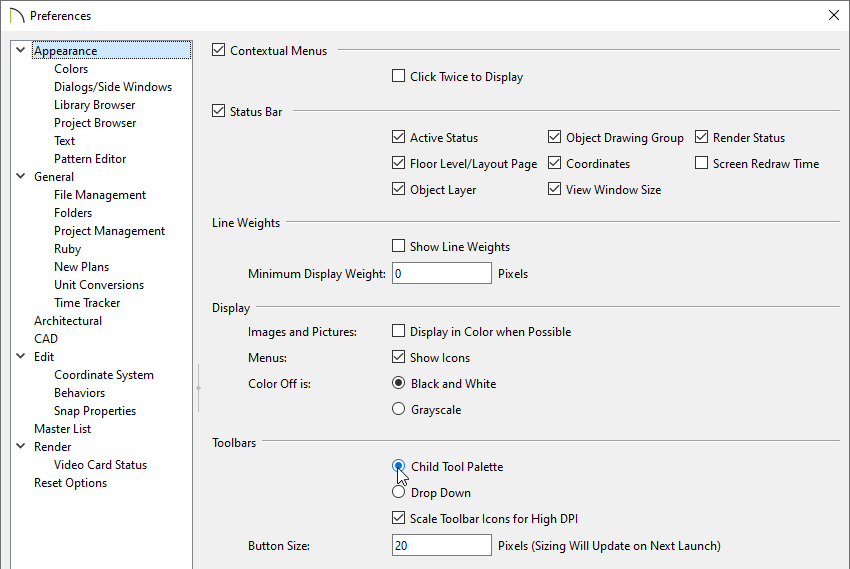
Note: If the Tool Palette doesn't open automatically after making this change, navigate to View> Tool Palette from the menu to toggle it's display.
Using the Tool Search*
*Applies to Chief Architect X16, Home Designer 2025, and newer program versions
- Navigate to Tools> Toolbars and Hotkeys> Customize Toolbars .
In Home Designer, navigate to Tools> Toolbars> Customize Toolbars instead.
- On the Tools panel of the Toolbar Customization dialog that displays, search for or browse the list for the Tool Search
 button.

- Click and drag the Tool Search button outside of the dialog box, and place it in your desired location. Click Close to close the dialog.
- You can now search for any tool in the program and a list of results will display, allowing you to quickly and easily access the various tools within the program.

Changing the toolbar button size
- Select Edit> Preferences from the menu if you're on a Windows PC, or Chief Architect/Home Designer> Preferences if you're on a Mac.
- On the Appearance panel of the Preferences dialog, under the Toolbars section, change the value to the right of the Button Size field, then click OK. The higher the value entered here, the larger the Toolbar buttons will be.
In this example, the Button Size was changed from 20 pixels to 40 pixels.
Uncheck "Scale Toolbar Icons for High DPI" to prevent toolbar icons from becoming larger on systems running Windows and using Custom Scaling to increase DPI resolution. When checked, toolbar buttons will increase in size when high DPI is used. This setting is not available in the Mac version of the software.
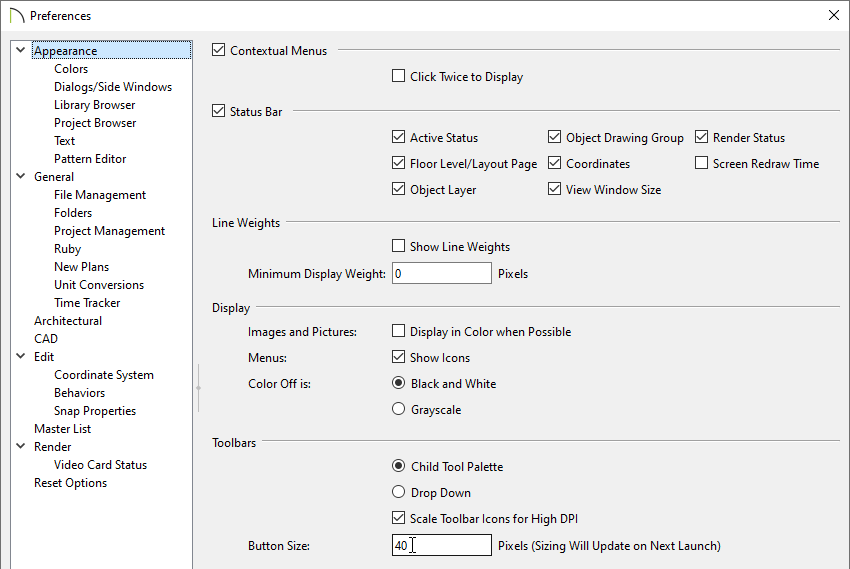
- When you relaunch the program, the change in button size will take effect.

Note: An increase to the toolbar button size may result in tools no longer fitting on your toolbar. Such toolbar buttons can be viewed by clicking on the double arrow icon on the far right of the toolbar.
Backing up toolbars using Traditional File Management
When using Traditional File Management, the toolbars, as well as other user-specific data, is saved in the Chief Architect/Home Designer Data folder within the Documents directory. This Data folder will begin with the full name and version of your Chief Architect/Home Designer program followed by the word Data - for example, "Chief Architect Premier X17 Data" or "Home Designer 2026 Data."
Note: If you're using Project Management instead of Traditional File Management, your toolbars, as well as other user-specific data are stored elsewhere and can be backed up using the dedicated backup functionality available within the program. To learn more about Project Management, please refer to the Related Articles section below or your program's Help documentation.
The default file path for the folder on Windows may be one of the following, but may also vary depending on your product and version:
C:\Users\ [ YOUR USERNAME ] \Documents\Chief Architect Premier X17 Data
C:\Users\ [ YOUR USERNAME ] \Documents\Home Designer 2026 Data
And on macOS:
/Users/ [ YOUR USERNAME ] /Documents/Chief Architect Premier X17 Data
/Users/ [ YOUR USERNAME ] /Documents/Home Designer 2026 Data
If you're using Traditional File Management and have moved your Chief Architect/Home Designer Data folder to a custom file location, refer to the location you have moved it to instead. You can confirm the location of your Data folder in the Preferences dialog. On the Folders panel, take note of the file path next to the "My Data Folder" or "Data Folder for Current User" heading.
- Close the Chief Architect/Home Designer program.
- Browse into the Data folder for your program version and locate the "Toolbars" folder.
- Right-click on the "Toolbars" folder and select Copy from the contextual menu.
On a Mac, hold down the Control key while clicking to initiate a right-click command. More information about right-click commands on Apple input devices can be found in the following Apple resource: Right-click on Mac.
- Navigate to the location in which you want to backup your toolbars to, then right-click and select Paste.
- To restore the backed up "Toolbars" folder, simply copy/paste the folder back into your program's Data folder, ensuring that the original name is intact.
Do note that two folders with the same name typically can't exist alongside each other, so you may have to overwrite the default "Toolbars" folder, if one exists. Take caution as any data that is overwritten will be lost and can't be retrieved.