Displaying the Living Area, or Square Footage, of a Room with the Room Name
Reference Number:
KB-00552
Last Modified:
April 28, 2026
This article also applies to the following legacy products:
Pro | Architectural | Suite
Pro | Architectural | Suite
QUESTION
I have just named a room in my structure and I now see the internal dimensions of the room below the label. What setting needs to be changed so that I can see the square footage of the room below the room name?
ANSWER
By default, Home Designer shows the internal dimensions of a room along with the room name, though both the interior area and standard area can be displayed by toggling the appropriate layers on.
To display the area of a room
- With a plan open, navigate to Tools> Display Options
 , and in the (Layer) Display Options dialog, scroll down to the layers beginning with the word: "Rooms".
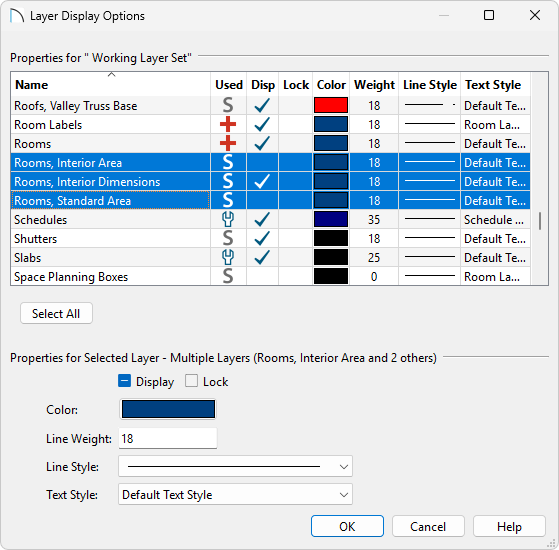
- The layers to be aware of are:
-
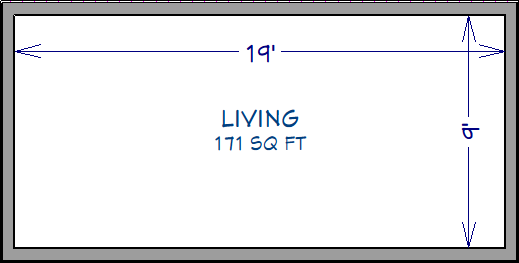
Rooms, Interior Area, which is measured from the inner surfaces of all the room's walls. It is rounded to the nearest square foot or mm.
-
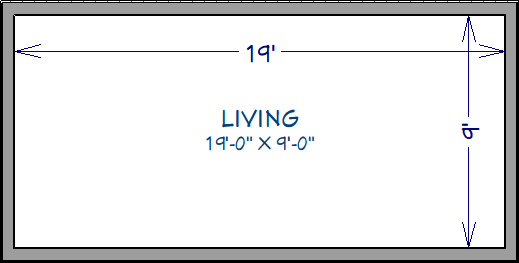
Rooms, Interior Dimensions, which is also measured from the inner surfaces of the room walls. It is rounded to the nearest inch or mm. This layer is toggled on by default.
-
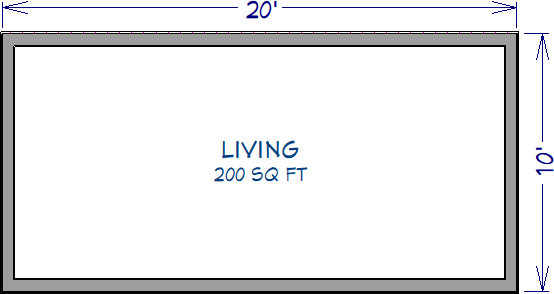
Rooms, Standard Area, which is measured from the center of interior walls to either the outside surface of exterior walls or exterior wall framing (main layer), depending on the 'Living Area To' setting in the Plan Defaults dialog. It is rounded to the nearest square foot or mm.
-
Rooms, Interior Area, which is measured from the inner surfaces of all the room's walls. It is rounded to the nearest square foot or mm.
- Clicking the check in the Disp column for any of these layers will show the dimension or area calculation under all room labels.
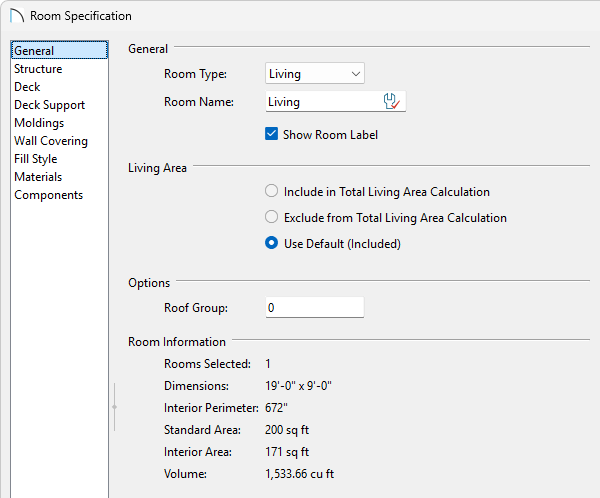
This same room information, along with the perimeter and volume, can also be viewed by accessing the General panel of the Room Specification dialog in Home Designer 2024 and newer versions.
Related Articles