Changing Your Payment Method
Reference Number:
KB-03244
Last Modified:
September 10, 2026
QUESTION
How can I change the payment method that is on file?
ANSWER
Changing the payment method, such as the credit card that is on file, can be done directly within your account.
Changing the payment method
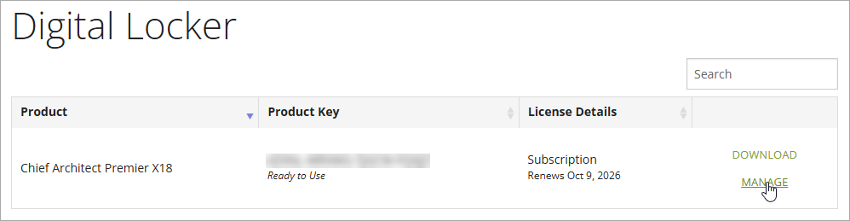
- Click on My Account, sign in to your account, then click on Digital Locker.
- Within your Digital Locker, click on the Manage link associated with your license.
If your license is not listed, first ensure that you're signed in to the correct account. If you have verified that the account is correct, please contact our Customer Service or Sales team for further assistance.
- Click Change Payment Method. If this option is not available, the license has likely expired or has been canceled.
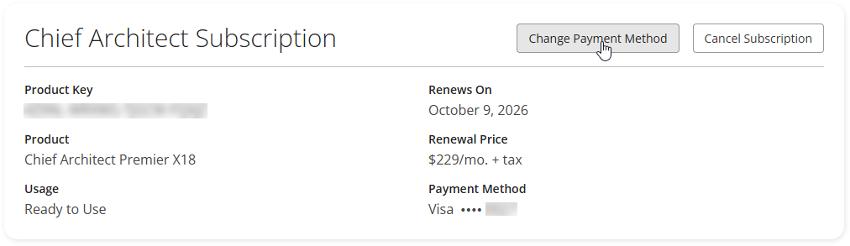
- Note the details that are shown, select your desired Payment Method, then click Save or Continue.
If you would like to edit or remove an existing payment method, please contact our Customer Service or Sales team directly.
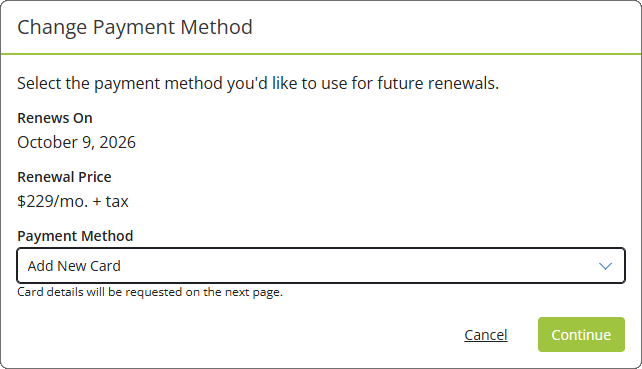
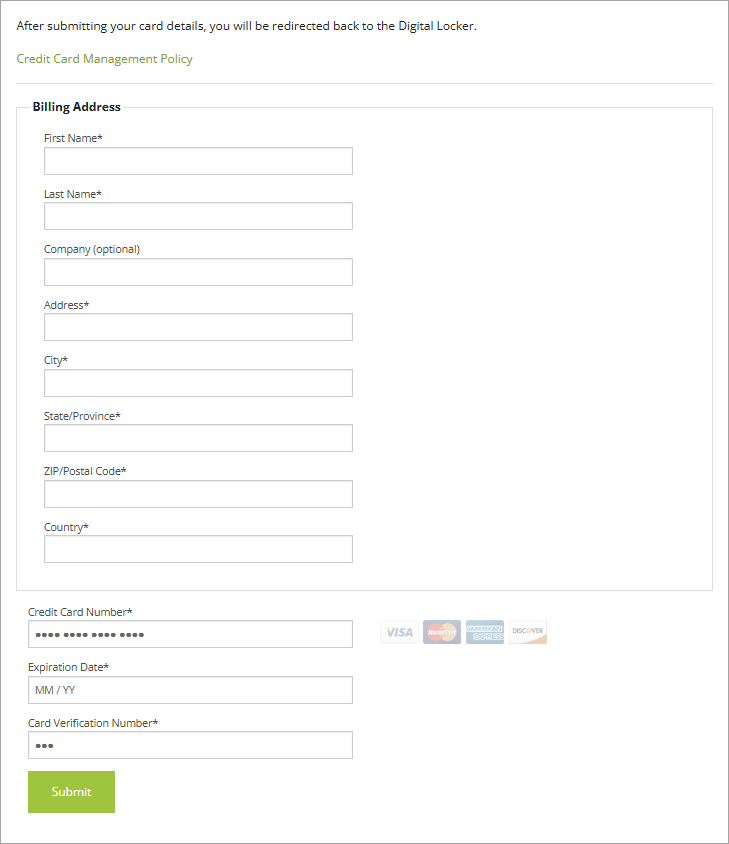
- If additional details are required to continue, you will be prompted with one of the following pages:
- If Add New Card was selected, enter your Billing Address details, Credit Card Number, Expiration Date, and Card Verification Number, then click Submit.
Note: If you receive a message stating "Something went wrong. Please try again..." after entering your billing and payment information, double-check that all of your information has been entered correctly, then try again.
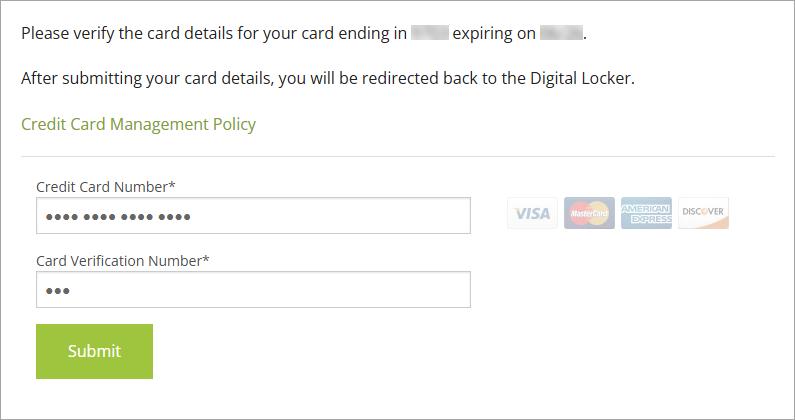
- If a card on file was selected, you may be asked to verify the card details; reenter the Credit Card Number and Card Verification Number, then click Submit.
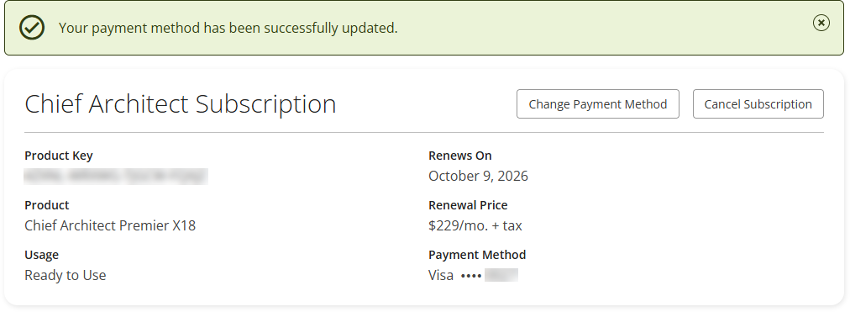
Once the payment method has been updated, a banner message will display stating: "Your payment method has been successfully updated." and your updated payment method will be reflected under the Payment Method property.
- If Add New Card was selected, enter your Billing Address details, Credit Card Number, Expiration Date, and Card Verification Number, then click Submit.
Related Articles