Creating a Cupola
Reference Number:
KB-03035
Last Modified:
October 30, 2026
This article also applies to the following legacy products:
Pro | Architectural | Suite
Pro | Architectural | Suite
QUESTION
I need to build a cupola, lantern, or steeple on top of the main roof of my structure. How can this be built?
ANSWER
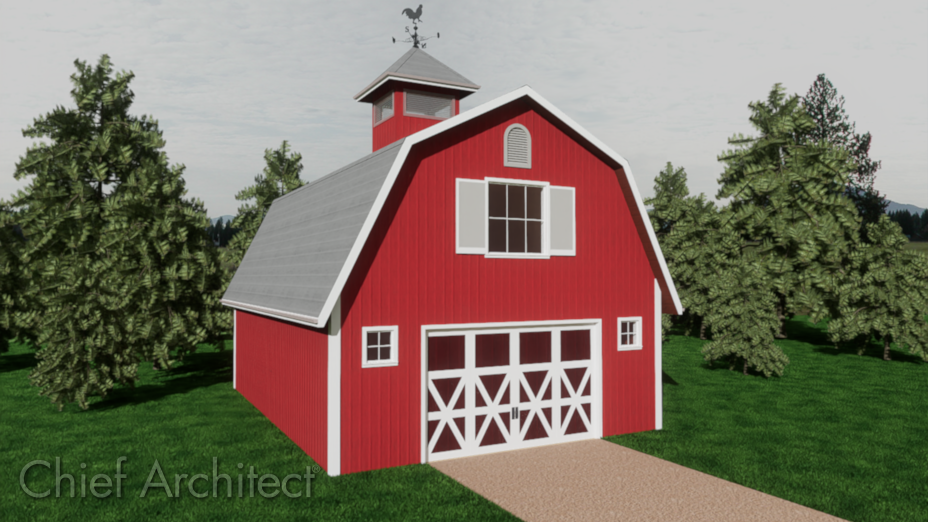
The following instructions will show you how to create a square cupola with a hip roof as shown in the barn image above.
To create the cupola
-
In the plan where you'd like to create the cupola, select Build> Floor> Build New Floor
 .
.
In this example, a basic 25' x 40' structure with a gambrel roof is already created.
For information on creating a gambrel roof or other basic roof designs, please see the Related Articles below.

-
In the New Floor dialog that displays, choose the Make new (blank) plan for the 2nd Floor option and click OK.
- In the 2nd Floor Defaults dialog that displays next, set your Ceiling height to the height you'd like the cupola to extend to.
-
To allow you to see the outline of the walls below, select Tools> Floor/Reference Display> Reference Floor Display
 .
.
- Select Build> Wall> Straight Exterior Wall
 and in a clockwise fashion draw the walls that will make up the cupola until you have a completely enclosed room.
Notice that in our example, since we have two Full Gable walls set on the floor below that the attic walls to the left and right are created automatically, but we are not placing the cupola inside of an enclosed room.

- Using the Select Objects
 tool, click inside of the cupola room to select it, then click the Open Object
  edit tool.
- In the Room Specification dialog that displays:
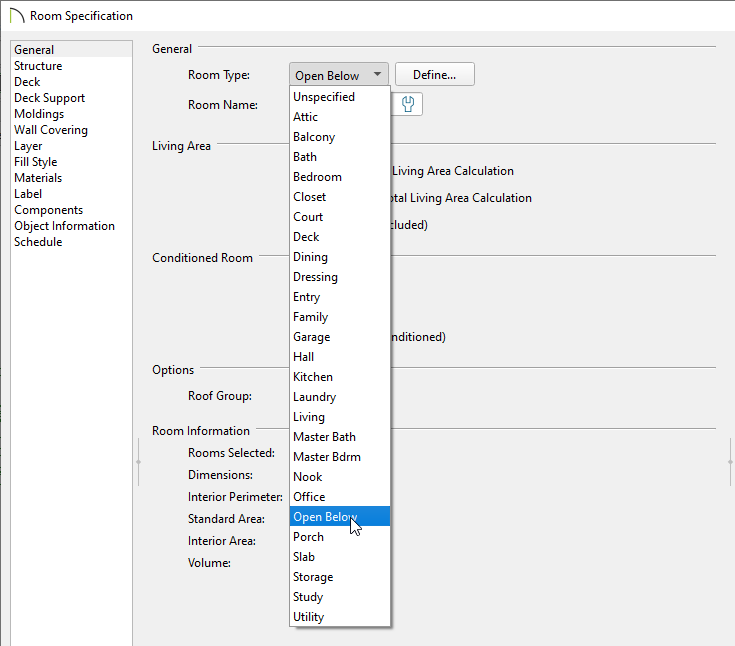
- On the General panel, set the Room Type to Open Below.
- You can change the Room Name to Cupola, if desired.
- If you need to adjust the ceiling height of the cupola go to the Structure panel, and adjust the Ceiling elevation.
- Once you're done with your changes, click OK.
- On the General panel, set the Room Type to Open Below.
- Navigate to 3D> Create Perspective View> Perspective Full Overview
 to verify that the cupola displays at the correct height.
In legacy products Home Designer Suite and Home Designer Architectural, instead navigate to 3D> Create Camera View> Perspective Full Overview .
.
Note: If your roof did not change, it's likely that Auto Rebuild Roofs is not enabled. To enable this setting, navigate to Build> Roof> Build Roof, check the Auto Rebuild Roofs box, and click OK.
Related Articles