Building an 'L' Shaped Structure with Full Gable Ends
Reference Number:
KB-00456
Last Modified:
February 11, 2026
This article also applies to the following legacy products:
Pro | Architectural | Suite
Pro | Architectural | Suite
QUESTION
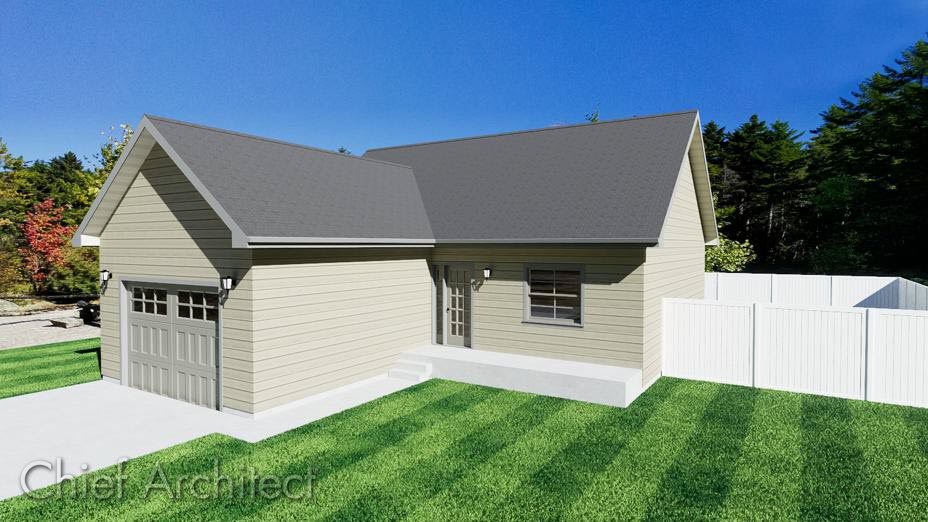
How do I create an 'L' shaped structure with three full gable ends automatically?
ANSWER
A reverse gable, sometimes called an opposing gable, is perpendicular to the main gable roof. A reverse gable can join the main roof anywhere along the main roof.
In this example, it joins the main roof at one end. You can create this style of roof automatically by setting the correct roof directives on your walls.
To build an automatic, L-shaped reverse gable roof
- In the file you'd like to design the roof in, select Build> Wall> Straight Exterior Wall
 , and draw the walls for your L-shaped structure in a clockwise fashion.

- Using the Select Objects
 tool, select the wall, then click and drag its end out to extend the wall through the bump-out of the L, so we know precisely where to place our wall break.

- Using the Select Objects tool, select the vertical wall where where the walls connect, and using the Add Break
 edit tool, click where the walls intersect to add a break, dividing the wall into two separate walls.

- Once the break has been placed, use the Select Objects
 tool to select one of the walls indicated below in red.

- Once selected, click on the Open Object
 edit tool.
- On the Roof panel of the Wall Specification dialog, select the Full Gable Wall option, then click OK.
- Repeat this process for each wall indicated in red in the image above.
- Pull the wall's end back to its original location.
- Select Build> Roof> Build Roof
 from the menu to open the Build Roof dialog.
- Check the Auto Rebuild Roofs checkbox to ensure the roof rebuilds.
- Set the roof's Pitch (in 12).
In this example the default value of 8" is used.
- Click OK to save you changes and build the roof.

- Check the Auto Rebuild Roofs checkbox to ensure the roof rebuilds.
- Select 3D> Create Perspective View> Perspective Full Overview
 from the menu to see the results.
In legacy Home Designer products Home Designer Suite and Home Designer Architectural, select 3D> Create Camera View> Perspective Full Overview instead.
Related Articles