Creating Decorative Exposed Trusses in a Cathedral Ceiling
Pro
QUESTION
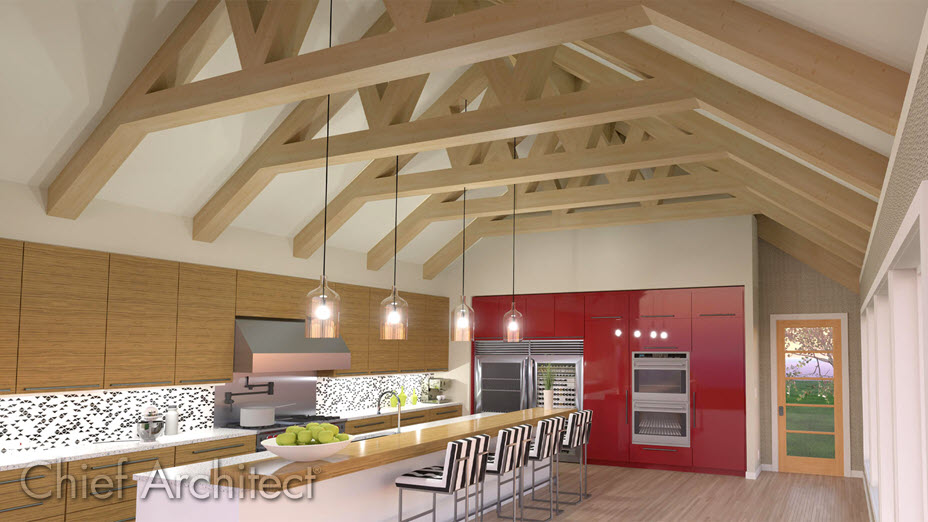
How can I create decorative exposed roof trusses in a room with a cathedral ceiling?
ANSWER
The recommended process for creating decorative, or faux, exposed trusses involves removing the flat ceiling from the area, generating a single truss manually, adjusting the shape,or envelope, of the truss to your liking, then duplicating the modified truss across the room.
To create decorative exposed trusses
- Access the plan file in which you would like to create decorative exposed roof trusses.
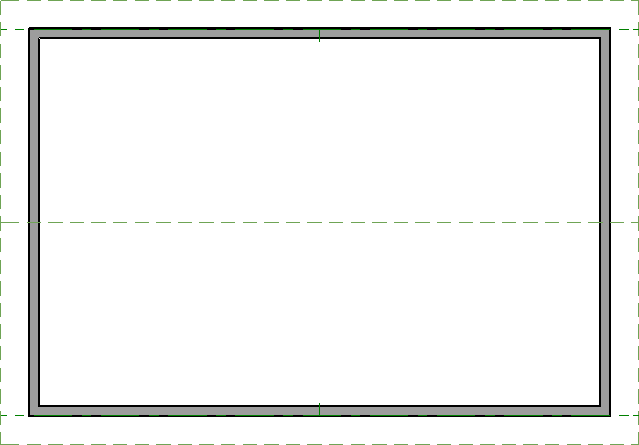
In this example, we are using a rectangular structure measuring 20' x 30' with a gable roof that has a 10:12 pitch.
- Using the Select Objects
 tool, click in the center of the room that will contain the exposed trusses, then click the Open Object
  edit button.
- On the Structure panel of the Room Specification dialog, uncheck the Flat Ceiling Over This Room box, then click OK.
- Navigate to Build> Framing> Roof Truss
 , then click and drag in your design to create a single truss.
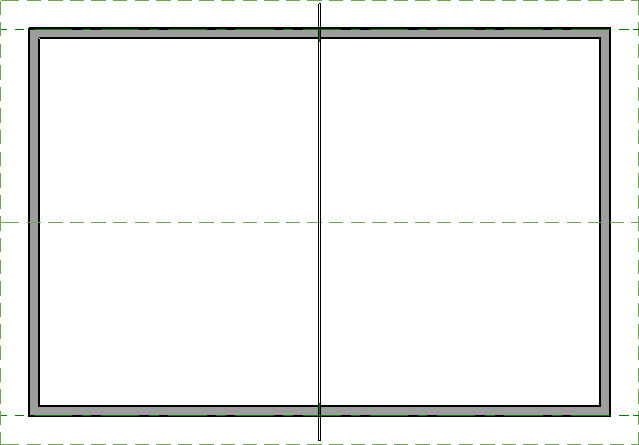
- Navigate to 3D> Create Orthographic View> Cross Section/Elevation
 , then click and drag towards the newly created truss to generate a cross section view.
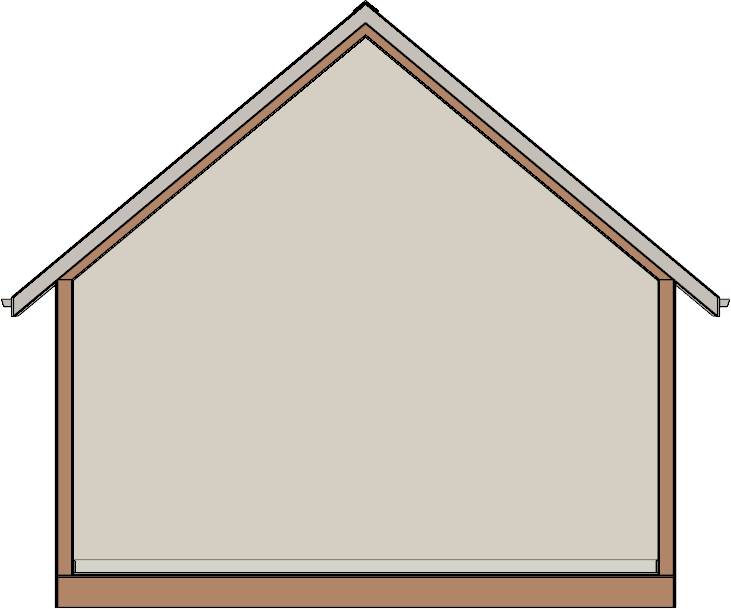
- It's likely that the "Framing, Roof Trusses" layer is not displayed in the cross section view, so navigate either to Tools> Layer Settings> Display Options
 or access the Active Layer Display Options*
  side window, then turn on the display of the "Framing, Roof Trusses" layer.
To learn more about layers, please see the "Understanding Layers" resource located in the Related Articles section below.
*Available in Chief Architect Premier only.
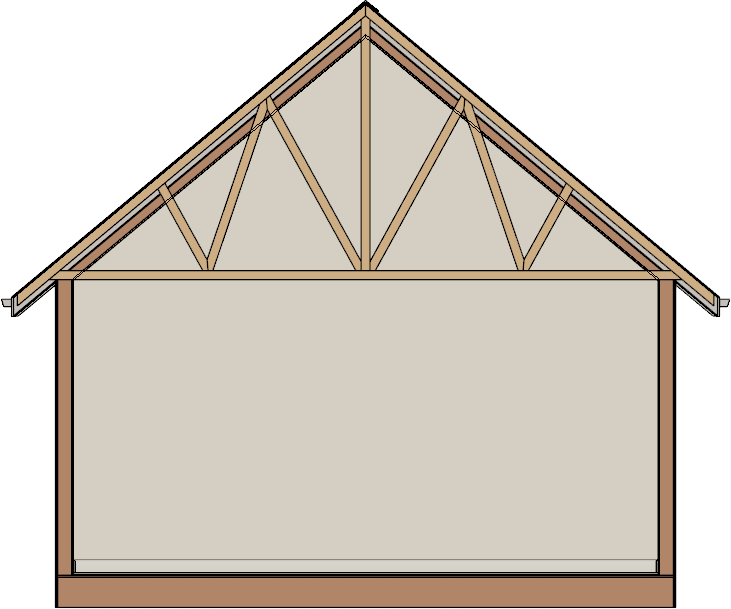
- We will now edit the shape, or envelope, of the truss to meet our needs:
- Using the Select Objects tool, click on one of the top chords of the truss to select main truss envelope, then use the Reshape edit handle along the chord's edge to adjust its position so it sits just under the roof surface layer.
To make the selection and editing of the truss more prominent, we have changed our Selection Fill color located on the Colors panel of the program's Preferences to be a bright green color. This is not necessary; however, you may find it helpful to better distinguish what component is selected when multiple objects are located in the same space.
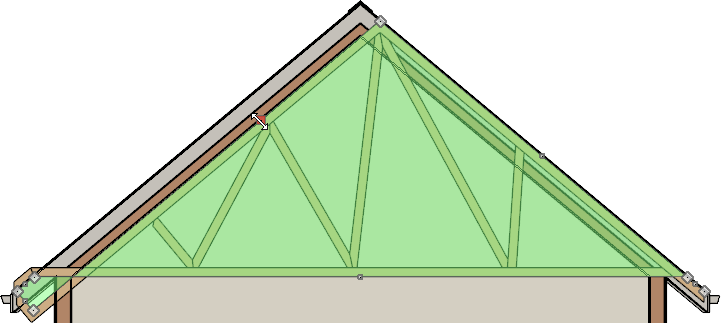
- Perform this same procedure with any other top chords that are part of the truss.
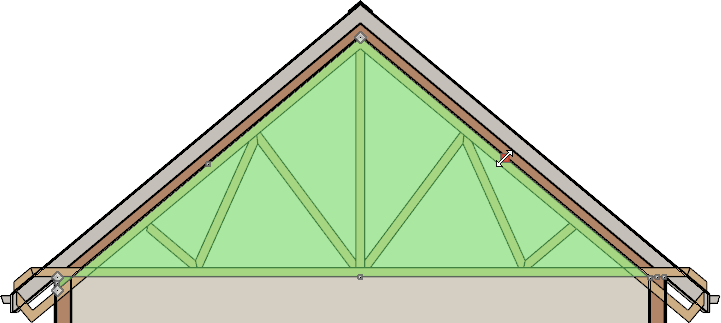
- Next, select the bottom chord of the truss, then use its Reshape edit handle to adjust its height/position to your liking.
In Chief Architect Premier, you can press the Tab key on your keyboard while dragging an edit handle to open the Enter Coordinates dialog, where the Y value can be changed to your liking; this allows you to precisely move the bottom chord/edge a specified distance.
Note: If you're wanting the bottom chord of the truss to consist of two separate framing members, of which are both sloped, you can place a break point at the center of the bottom chord, then reshape the bottom chord using the newly generated edit handle. For more information on adding breaks, see Video # 303: Using the Break Tool or refer to your program's documentation.
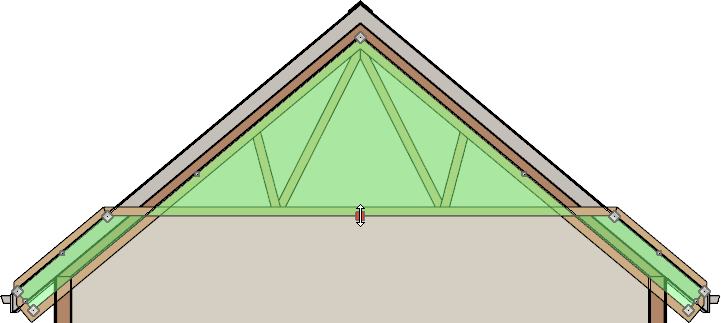
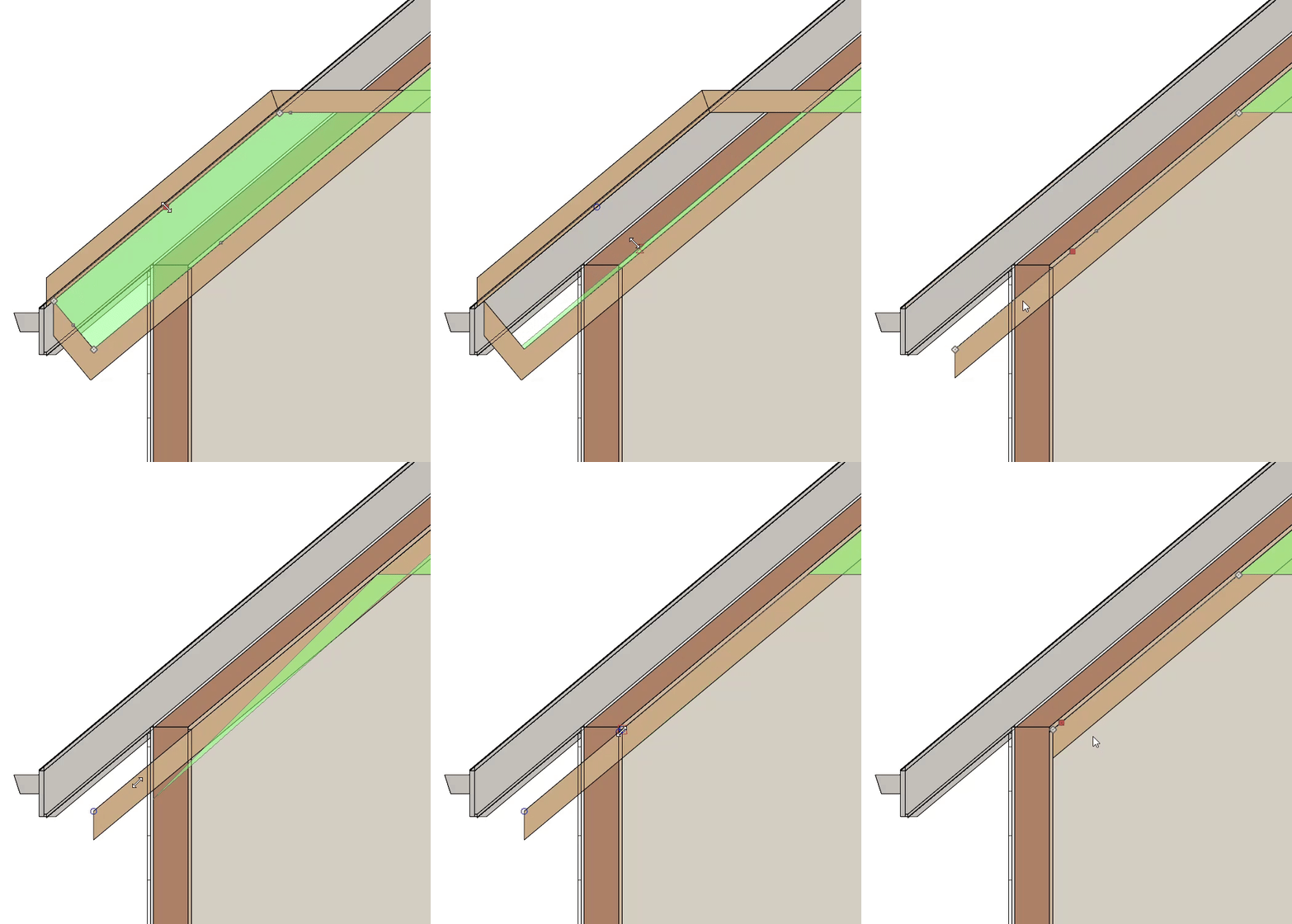
- The tails on each side of the truss now need to be adjusted; zoom into the left side of the truss, then use the Reshape edit handle(s) to adjust the shape, like shown below.
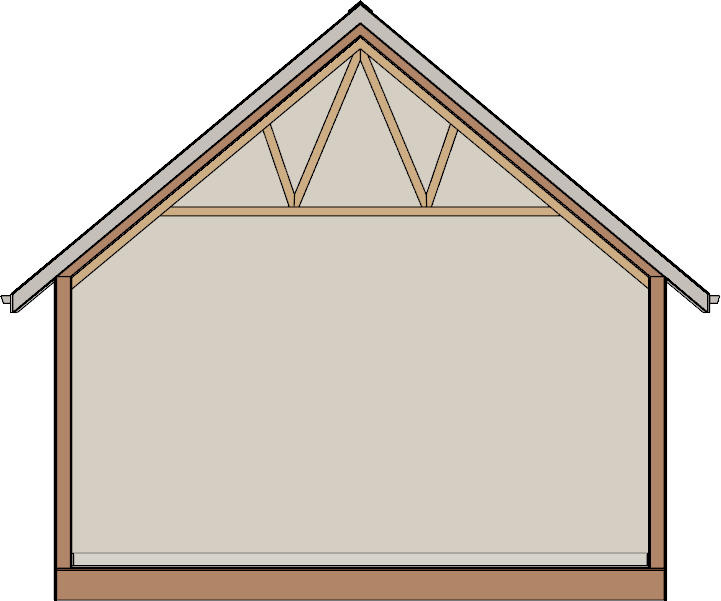
- Perform the same process on the opposite side. The shape, or envelope, of our truss is now complete.
- Using the Select Objects
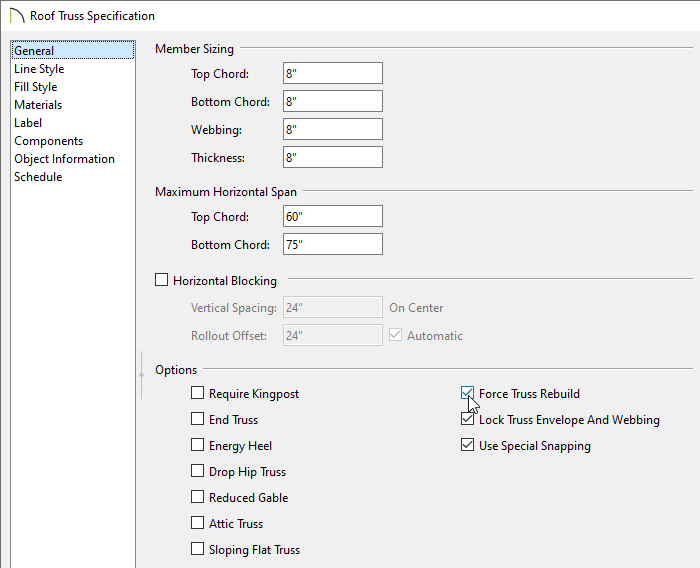
- With the truss shape complete, Select it, Open it up to specification, define the Top Chord, Bottom Chord, Webbing, Thickness, and other settings to your liking, check the Force Truss Rebuild box, then click OK.
In this example, the Top Chord, Bottom Chord, Webbing, and Thickness have all been set to a value of 8".
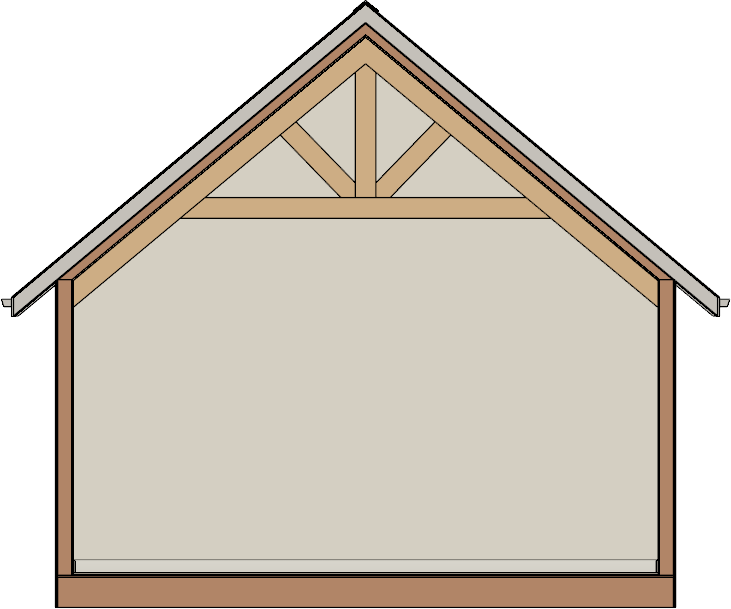
Notice that the top and bottom chords, along with the positioning of the truss' tails will remain intact even when different values have been specified.
- Return to a floor plan view, ensure that Temporary Dimensions
 are toggled on, Select the truss, then use one of the temporary dimensions to move the truss precisely towards one end of the structure.
In this example, we moved the truss to be 2' 8" from the outside layer of the exterior wall.
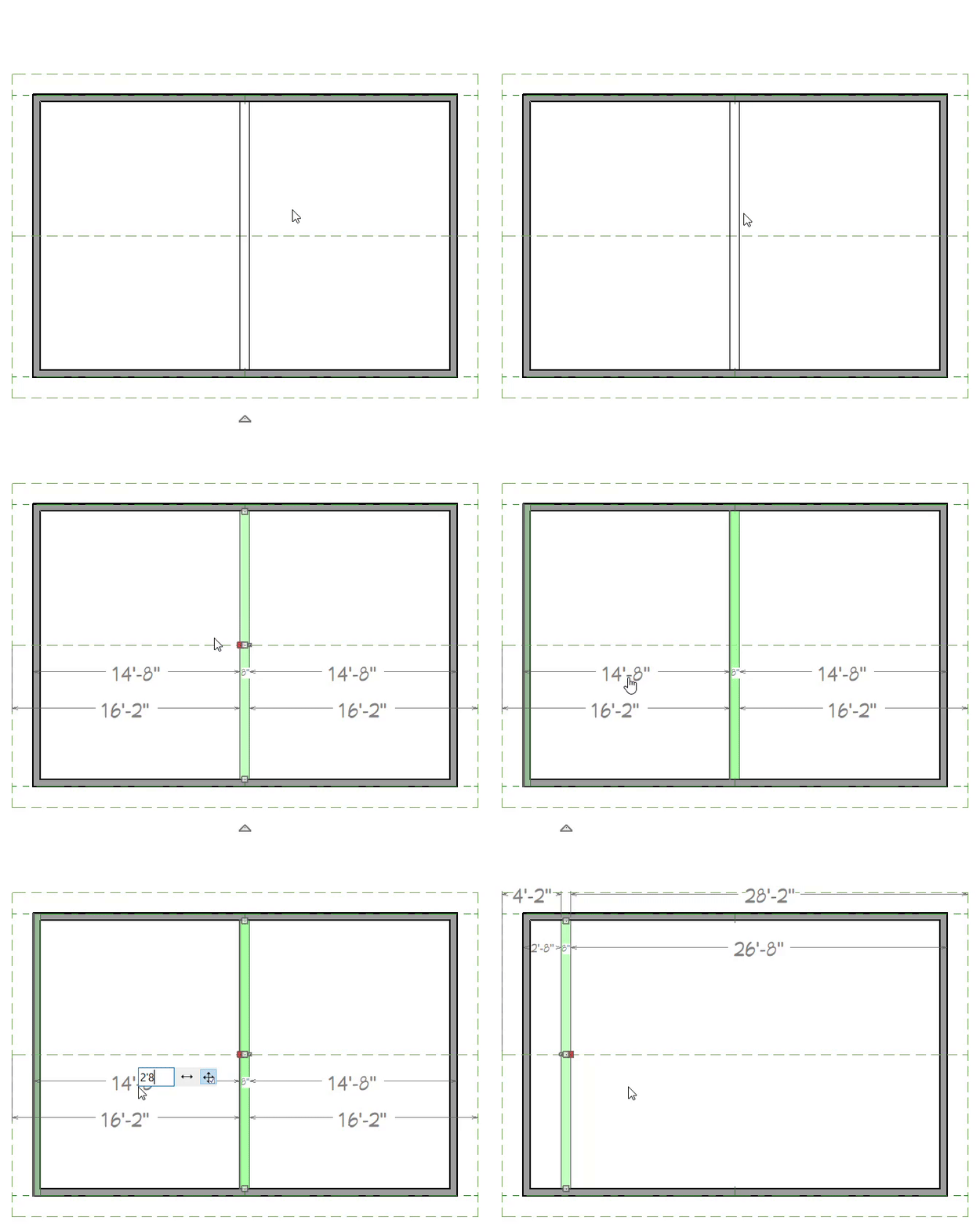
- We are now ready to make copies of this truss; with the truss selected, follow the steps below for your product:
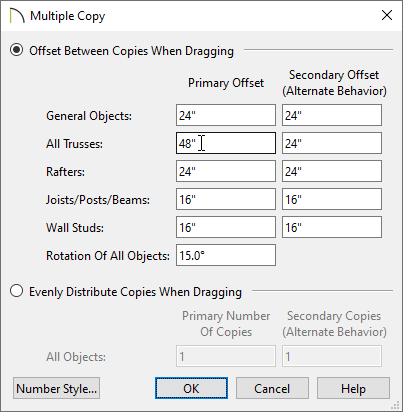
- In Chief Architect, click on the Multiple Copy
 edit button, click on the Multiple Copy Interval
  secondary edit button, specify the desired Primary Offset value for All Trusses, then click OK.
In this example, the Primary Offset value of 48" is used.
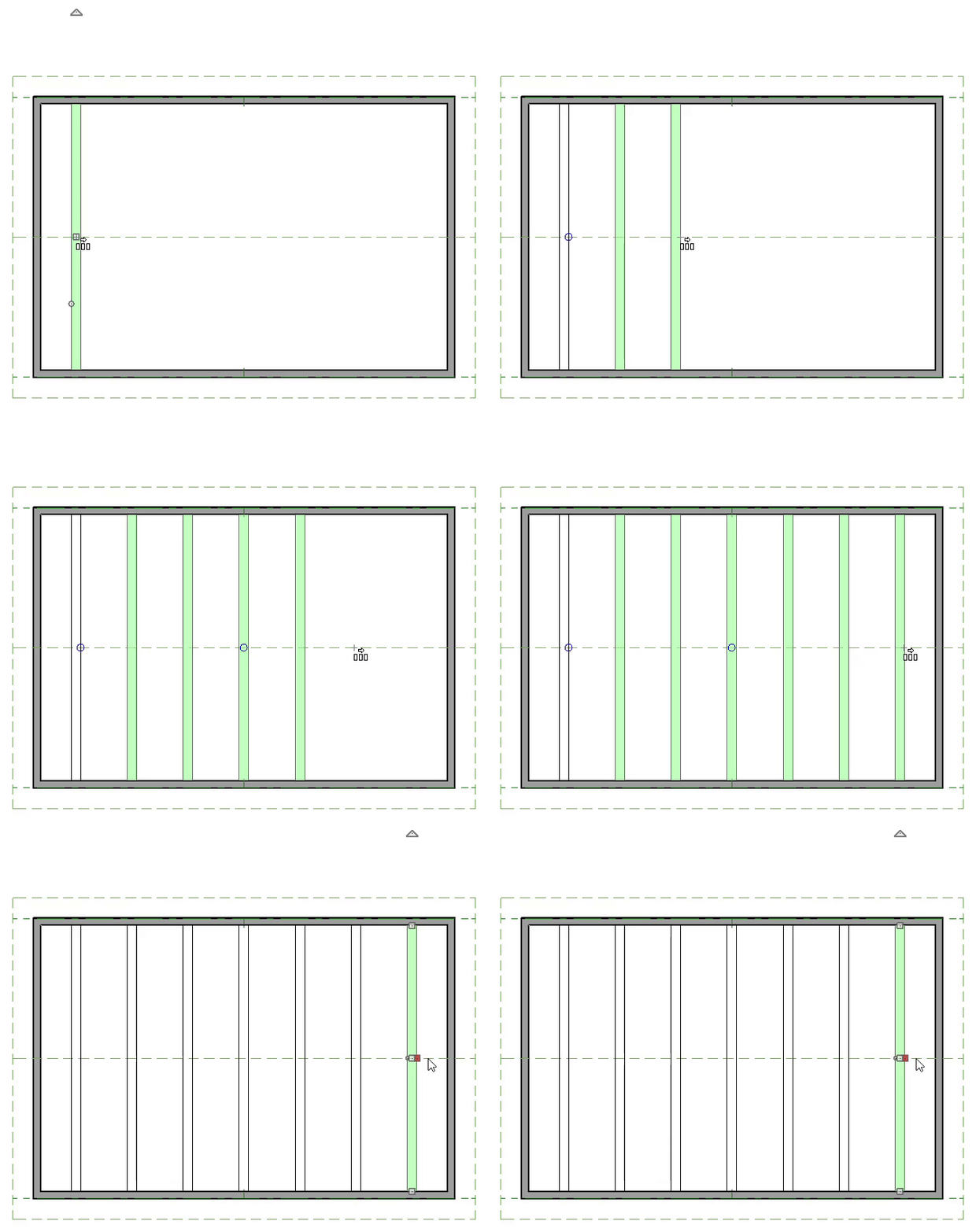
Hover over the main Move edit handle on the truss until you see the Multiple Copy
  cursor display, then click and drag across the structure. As you drag, new trusses will be created at regular intervals. Release the mouse button to complete the command.
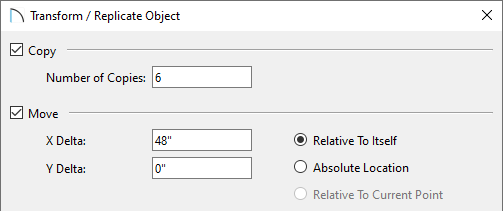
- In Home Designer, the Multiple Copy option is not available. Instead, click on the Transform/Replicate Object
 edit button, and in the dialog that displays, check the Copy box, specify a desired Number of Copies, check the Move box, set the X Delta to an offset value that you want to use, then click OK.
In this example, the Number of Copies is set to 6 and the X Delta is set to 48".
- In Chief Architect, click on the Multiple Copy