Creating Custom Driveways and Sidewalks
Reference Number:
KB-00774
Last Modified:
May 14, 2026
This article also applies to the following legacy products:
Pro | Architectural | Suite
Pro | Architectural | Suite
QUESTION
How do I create custom driveways and sidewalks?

ANSWER
Driveways and sidewalks can be drawn using the Road and Sidewalk terrain tools. Road and Sidewalk features follow the slopes of your terrain so you can easily create a wide variety of designs for your home's exterior.
To add a custom driveway
- Create a Terrain Perimeter by clicking Terrain> Create Terrain Perimeter
 , if you don't already have one.
- Select Terrain> Road and Sidewalk> Driveway Area
 from the menu.
- Left-click near the top left corner of the garage and drag down and to the left to create the first part of the driveway.
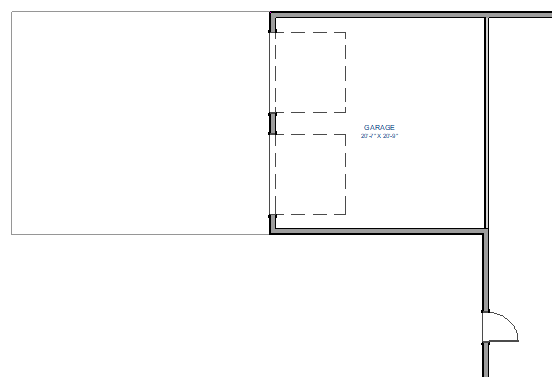
- To create a turn in the driveway:
- Click to select the driveway, and select the Add Break
 tool from the Edit Toolbar. Then, left-click along the bottom edge of the driveway to place a break.
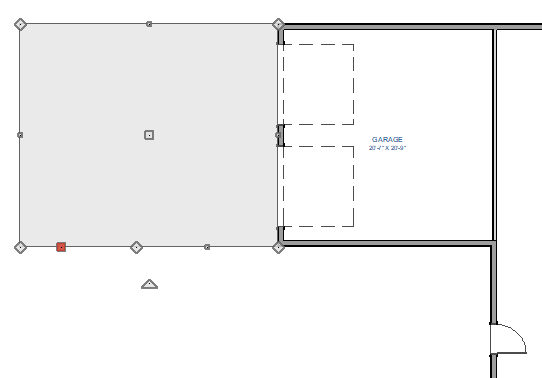
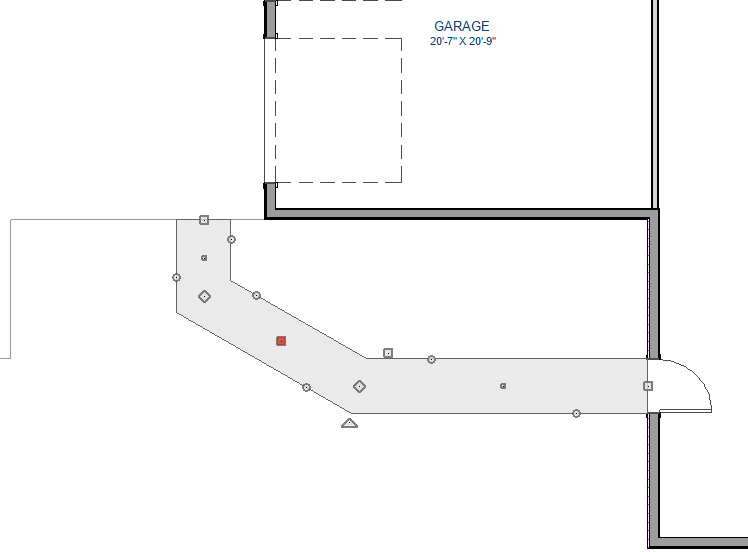
- Select and drag the left line segment downward, as shown in the image below.
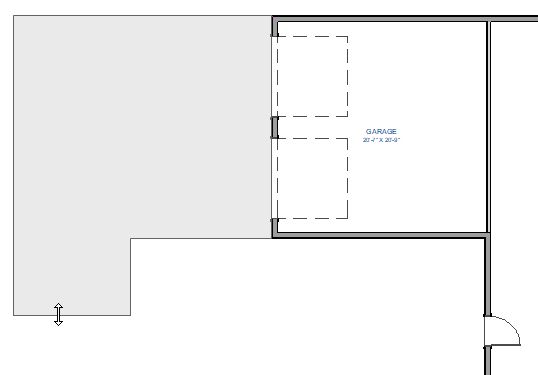
- Click to select the driveway, and select the Add Break
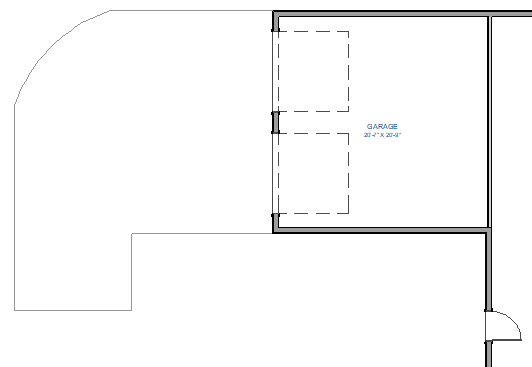
- To curve the corner of the driveway:
- Select the driveway and click the Add Break edit tool.
- Place a break in from the upper left corner of the driveway.
- Click and drag the diamond shaped move handle on the corner down to create a 45° angle.
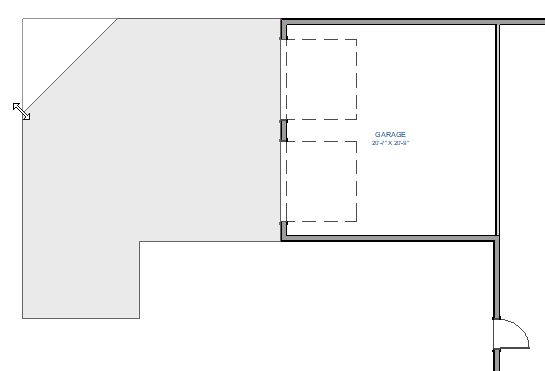
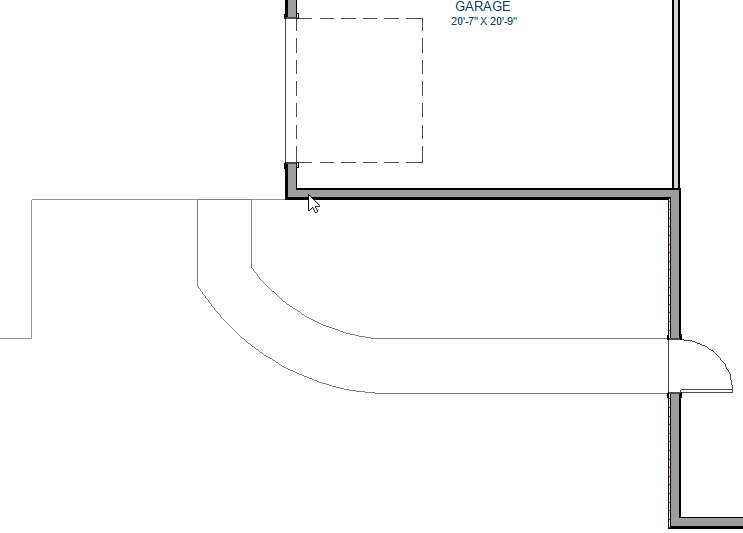
- With the angled edge selected go to the edit toolbar and click the Change Line/Arc
 edit button to create the curve. The shape of the curve can be adjusted using the edit handles.
- Select the driveway and click the Add Break
- With the Select Objects
 tool, click on the driveway, click on Open Object
  to open the Terrain Feature Specification dialog where the Thickness and Materials can be changed to your liking.
To create a custom sidewalk
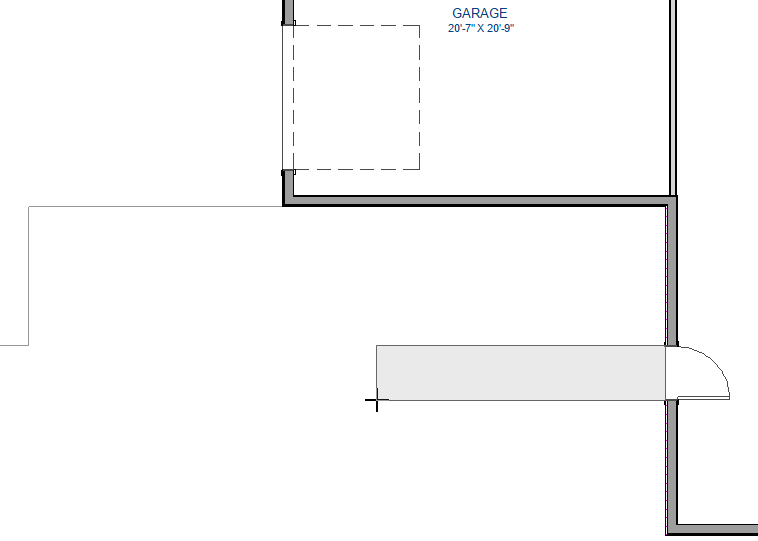
- Select Terrain> Road and Sidewalk> Straight Sidewalk
 from the menu.
- Click and drag a line from the center of your entry stairs.
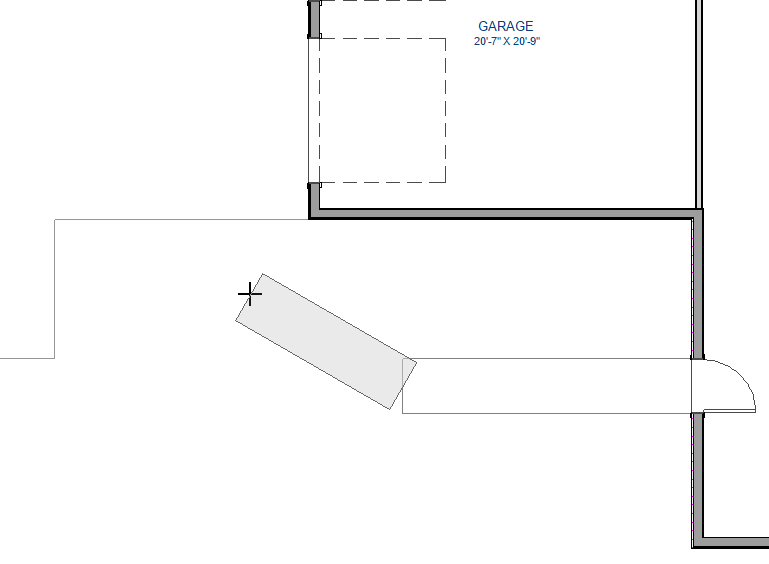
- Click and drag a smaller, angled segment.
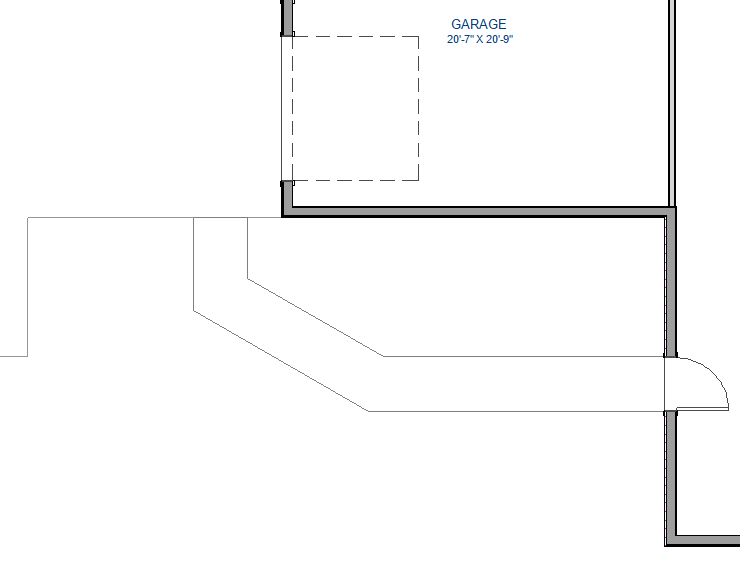
- Click and drag the final segment to meet the driveway.
-
To curve the angled segment:
-
Select the smaller, angled sidewalk segment.
- Click the Change Line/Arc tool on the Edit Toolbar.
-
Select the smaller, angled sidewalk segment.
- With the Select Objects tool, click on the sidewalk, click on Open Object to open the Terrain Path Specification dialog where the Thickness and Materials can be changed to your liking.
Related Articles