Creating an Attached Porch
Pro | Architectural | Suite
QUESTION
I would like to know how to create an attached porch on my plan. How can I accomplish this task in Home Designer?
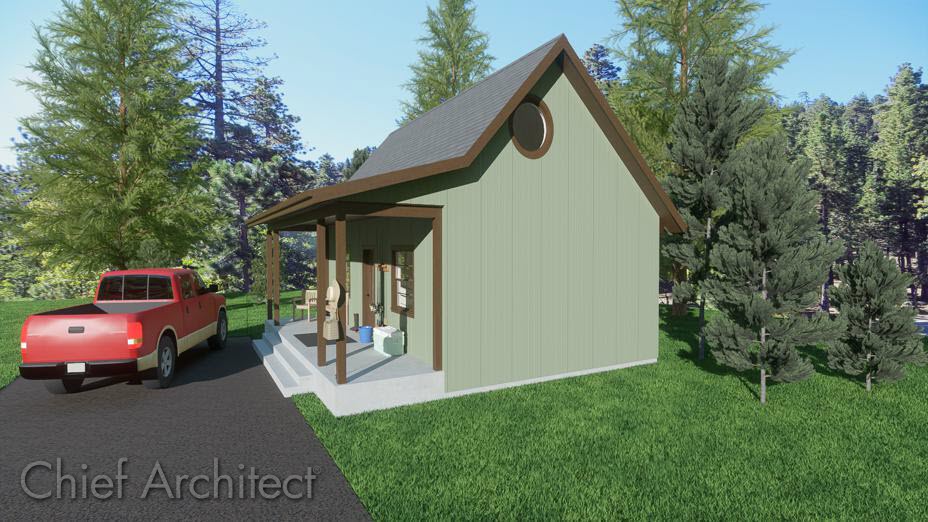
ANSWER
An attached porch can be created by utilizing the railing tools to create a porch room, and then defining the railings to create a lean to roof. For the purpose of this example we will begin by creating a simple shaped structure.
To create the initial structure
- Select Build> Wall> Straight Exterior Wall
 then click and drag out your walls to create a basic rectangular structure.
For this example, we created a basic 20' x 30' structure.

- Next, select the left wall of the building, and click on the Open Object
 edit button to display the Wall Specification dialog.
- On the Roof panel, select the Full Gable Wall radio button, then click OK to confirm the change.
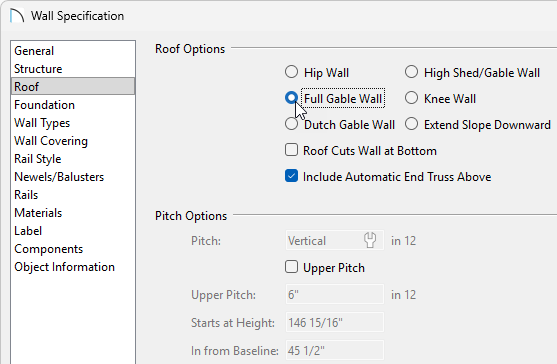
- Repeat this process on the right wall of the building so that both 20' walls are marked as Full Gable Walls.
To create the attached porch
- Next, select Build> Railing and Deck> Straight Railing
 , then click and drag out three railings to create an enclosed room on the front of the structure.
For our example, the front railing will be 7' out from the exterior wall.

- After creating the railings, use the Select Objects
 tool to select the newly created room, then click on the Open Object edit button.
- On the General panel of the Room Specification dialog that opens, change the Room Type to Porch, then click OK.
- Select the left railing and click on the Open Object edit button to display the Railing Specification dialog:
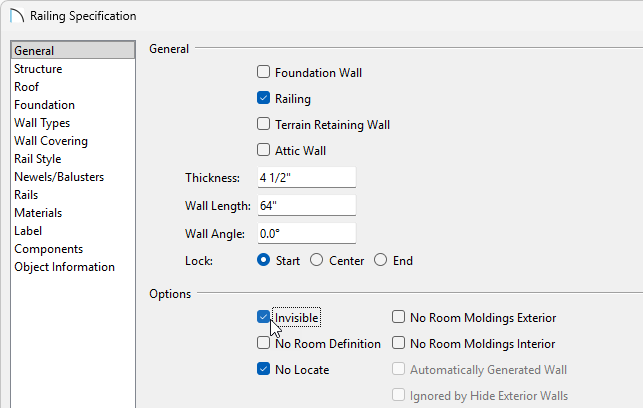
- On the General panel, place a check in the Invisible box.
- On the Roof panel, select the Full Gable Wall radio button.
- Click OK to confirm the changes and close the dialog.
- On the General panel, place a check in the Invisible box.
- Repeat this process for the right railing as well, so that both railings are set to be Invisible and Full Gable Walls.
- Now, select Build> Roof> Build Roof
 to display the Build Roof dialog:
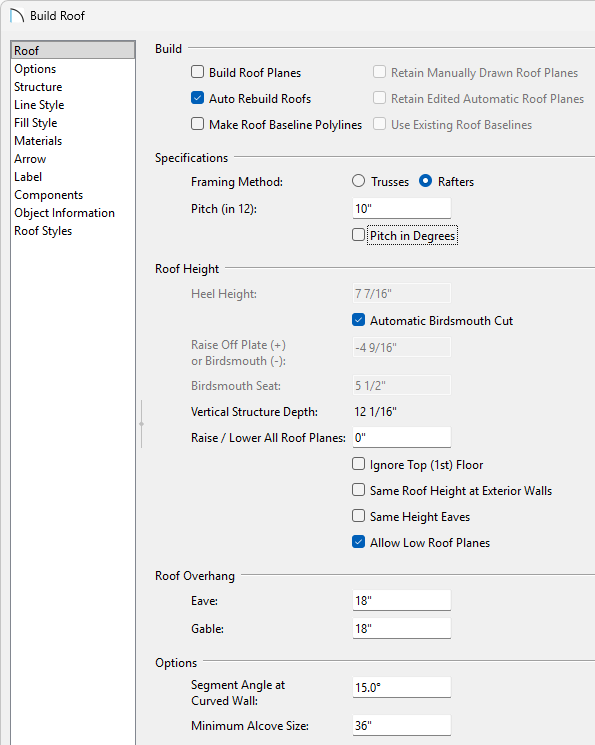
- On the Roof panel, make sure that Auto Rebuild Roofs is checked, then set the overall Pitch (in 12) that you want for your main structure.
For the purposes of this example, we will set the Pitch (in 12) to 10".
- Once you have completed making changes in this dialog, click OK.
- On the Roof panel, make sure that Auto Rebuild Roofs is checked, then set the overall Pitch (in 12) that you want for your main structure.
- Finally, take a Camera
 view to see the results so far.

Now that we have created our walls and railings, as well as specified the overall main pitch for the structure, all that is left is to define the front railing.
To define the front railing
- Use the Select Objects tool to select the front railing, then click on the Open Object edit button.

- In the Railing Specification dialog that opens, make the following adjustments:
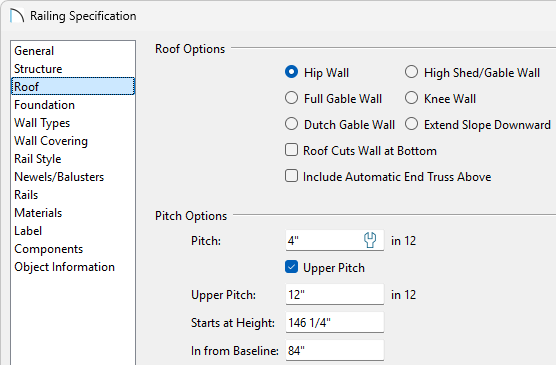
- Select the Roof panel and specify a Pitch of 4" in 12, an Upper Pitch of 12" in 12, and In From Baseline value of 7' (84").
Recall that 7' is the distance that the front railing was from the exterior wall, which is where we want the change in pitch to occur for the roof plane.
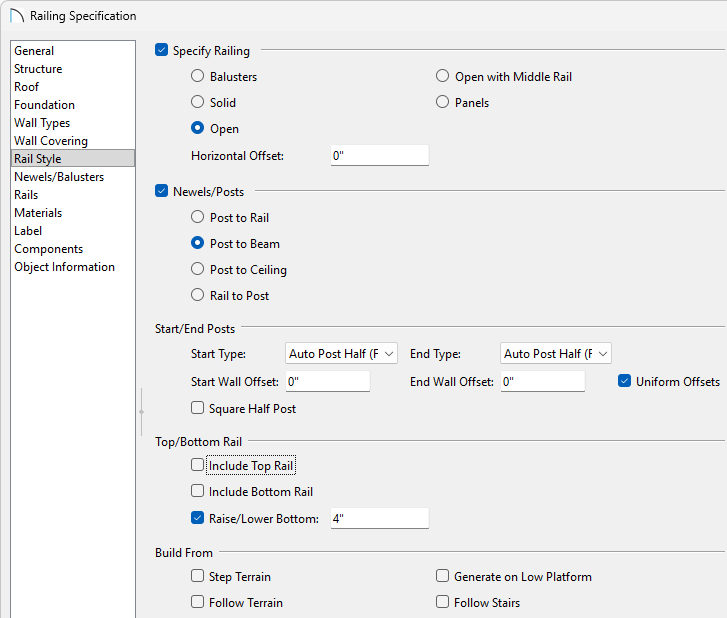
- On the Rail Style panel, select the Open radio button, select the Post to Beam radio button, then remove the checks from the Include Top Rail and Include Bottom Rail boxes.
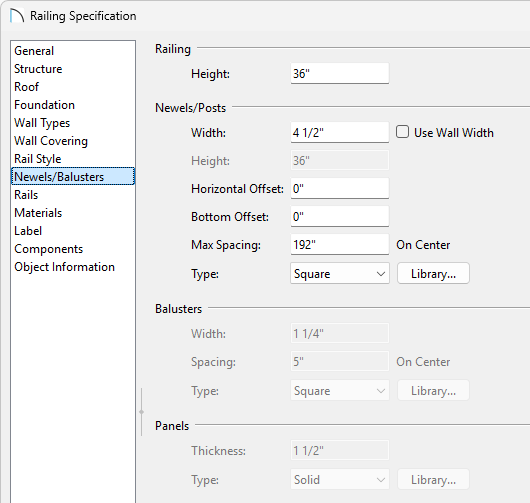
- On the Newels/Balusters panel, change the Newel/Posts Spacing value to 192" so that there will only be three, instead of five posts across the front of the structure.
You can adjust the post width on the Newels/Balusters panel and the beam width/height can be adjusted on the Rails panel.
The Rails panel is not available in legacy Home Designer Suite.
- Click OK to confirm the changes and close the dialog.
- Select the Roof panel and specify a Pitch of 4" in 12, an Upper Pitch of 12" in 12, and In From Baseline value of 7' (84").
- Take a Camera view to see the results.
