Creating a Custom Fireplace and Chimney
Pro | Architectural | Suite
QUESTION
I would like to create a custom fireplace with an insert, hearth, and mantel. How can I do this?
ANSWER
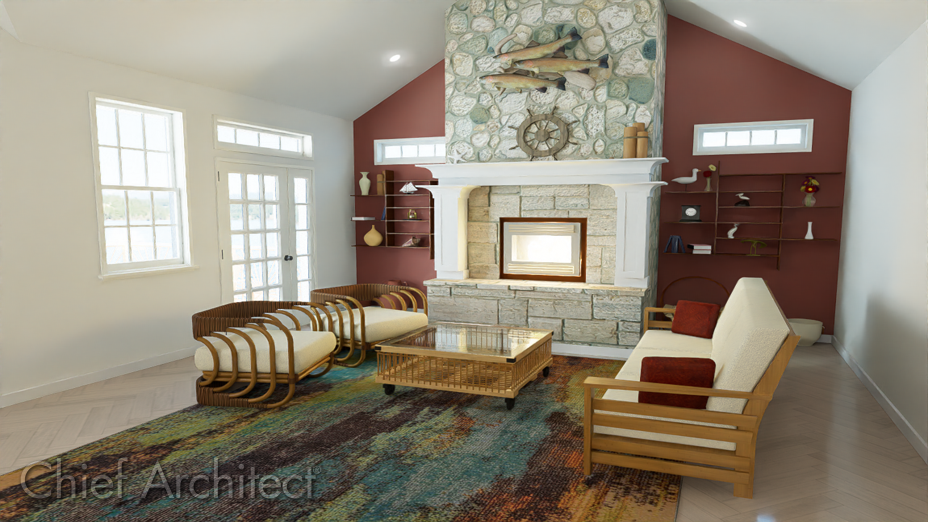
Creative combinations of different objects such as fixtures, soffits, walls and wall openings allow you to create a wide variety of fireplace and chimney designs.
This article will cover the following:
- Building a chase for a fireplace insert
- Placing an insert into the chase
- Adding a hearth
- Adding a mantel with columns
- Creating the chimney
- Applying materials to the fireplace and chimney
- Applying materials to the chase walls and fireplace surround
To build a chase for a fireplace insert
- Select Build> Wall> Straight Interior Wall
 from the menu and draw three walls to form the chase for your fireplace and chimney. Don't worry about the exact placement of the walls right now - they can be moved into position accurately in a moment.
- Select CAD> Dimensions> Interior Dimension
 from the menu and drag an Interior Dimension line across the room - beginning at one wall and dragging straight through the side walls of the chase.
- Select the left side wall of the chase. Use the Interior Dimension on the left to set the correct distance from the left side of the room.

- Repeat this process with the wall on the right side of the chase and the wall forming the front of the chase.

To place an insert into the chase
- Select Build> Window> Window
 from the menu and click on the front wall of your chase to place a window at that location.
This window will be used to create a wall opening an insert can be modeled in.
- Click on the window to select it, click the Center Object
 edit button, and click inside the chase 'room' area. This will center the opening exactly between the two side walls.

- With the window still selected, click the Open Object
 edit button and in the Window Specification dialog that displays:
- On the General panel, click the Window Type drop-down arrow and select Fixed Glass from the list. If you already know the size and height you want the opening to be, you can also specify it here.
- On the Casing panel, uncheck Use Interior Casing and Use Exterior Casing.
- Select the Sill* panel, and uncheck Use Interior Sill and Use Exterior Sill.
*Not available in legacy Home Designer Suite and Home Designer Architectural.
- On the Lites panel, specify 1 for both Lites Across and Lites Vertical.
- On the Materials panel, click on the word Glass, click the Select Material button, then browse and select a Fire material from the Library.
You can choose the other materials now if you like or wait until later. They can, of course, be changed at any time.
For information on creating realistic fireplace lighting, please see the Related Articles section.
- Click OK to close the dialog and apply your changes.
- On the General panel, click the Window Type drop-down arrow and select Fixed Glass from the list. If you already know the size and height you want the opening to be, you can also specify it here.
- Select View> Library Browser
 from the menu to open the Library Browser side window if it's not already open.
- Browse to Core Catalogs> Interiors> Accessories> Fireplace Accessories.
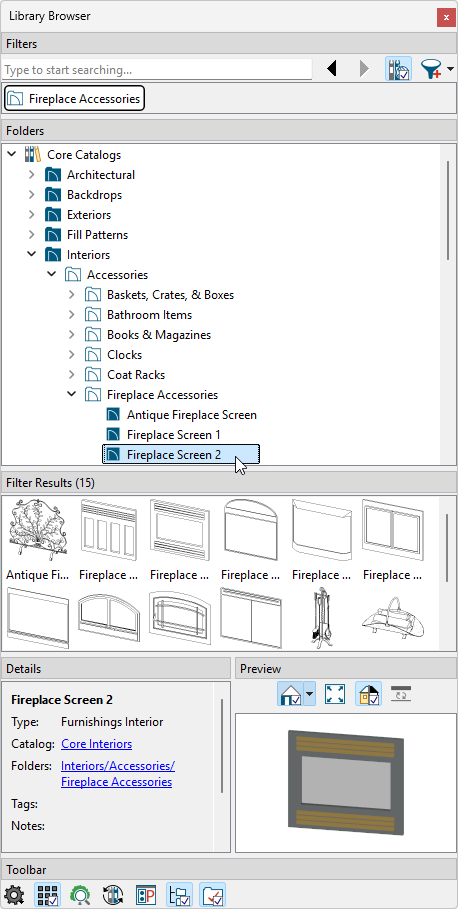
- Depending on your program, there may be several fireplace screens available. Click on one to select it, then click once in your floor plan to place the selected screen in your plan.
- Browse to Core Catalogs> Interiors> Accessories> Fireplace Accessories.
- With the fireplace screen still selected, click the Move
 edit handle and drag the screen so that it is directly in front of the window forming the insert opening.

- Select 3D> Create Camera View> Elevation
 from the menu and click and drag a camera view in the direction of the window and screen, keeping the camera arrow perpendicular to the front wall.
In legacy products Home Designer Suite and Home Designer Architectural, instead select 3D> Create Camera View> Elevation .
.
- If you don't see the fireplace screen, navigate to Tools> Display Options
 from the menu and place a checkmark in the Disp column for the "Furniture, Interior" display layer. In this elevation view:
- Click on the frame of the window to select it and resize the opening as desired using the edit handles that display.
- Click on the fireplace screen to select it, and move and resize it using the edit handles so that it fits inside the frame of the window.
- When you are satisfied with the appearance of the frame and screen, select File> Close View to close the camera view and return to floor plan view.

- Click on the frame of the window to select it and resize the opening as desired using the edit handles that display.
- In floor plan view, select Window> Zoom
 from the menu, then click and drag a rectangular marquee around the fireplace insert chase, including the screen in the selection.
- Click on the fireplace screen to select it, hold down the Ctrl/Command key on your keyboard, and drag the screen into the center of the window using the Move edit handle. If the screen snaps to the outside edge of the window opening, click the Open Object edit button and increase the Depth, or thickness, of the screen to 6 inches, then click OK and try again.

If you have trouble selecting the fireplace screen, click the Select Next Object edit button or press the Tab key on your keyboard until the screen is selected.
Many custom objects can be designed using the Soffit  tool, which is what we'll use to design the hearth.
To add a hearth
- Select Build> Cabinet> Soffit from the menu, then click once in the plan to create a soffit.
- Select the soffit to display its edit handles and use those handles to move the soffit into position in front of the fireplace and then resize it as needed.

- With the soffit still selected, click the Open Object edit button and in the Soffit Specification dialog that displays:
- On the General panel, specify the desired Height of the hearth, which should be near the bottom of the insert opening.
- Specify the Floor to Bottom distance as 0", since this hearth should rest on the floor.
- On the Materials panel, click on the word Soffit, then click the Select Material button and browse the Materials library to find an appropriate material for the hearth. Remember that this material can be changed at any time.
- Click OK to close the dialog and apply your changes.
- On the General panel, specify the desired Height of the hearth, which should be near the bottom of the insert opening.
- You can create a cap for your hearth using a second, thinner soffit placed on top of the first if you so desire.

As cabinets feature front items such as drawers, doors and panels, the Full Height Cabinet tool, which is another child of the Cabinet Tools, can be used to create customized mantels and square columns beneath.
To add a mantel with columns
- Select Build> Cabinet> Full Height
 from the menu, then click to create a full height cabinet in front of the fireplace.
- Click on the full height cabinet to select it then click the Open Object edit button. In the Full Height Cabinet Specification dialog that displays:
- On the General panel, specify the Depth of your mantel.
The Height, Width and Floor to Bottom distance can be set using the edit handles in an Elevation view.
- Uncheck the Toe Kick* checkbox to remove the toe kick.
*Not available in legacy products Home Designer Suite and Home Designer Architectural.
- On the Front panel, click on the bottom door of the cabinet in the preview image and click on the Delete button to remove the door and leave an opening. Click on the new opening and click Delete again until you're left with a single door.
- Click on the remaining door and specify it as a Panel in the Item Type drop-down list.
- On the Door/Drawer panel, select None from the Door Handle and Drawer Handle drop-down lists.
- On the Moldings panel, you can add a crown or base molding for further detail.
- Click OK to close the dialog and apply your changes.
- On the General panel, specify the Depth of your mantel.
- With the full height cabinet still selected, use the Move edit handle to move it into position over the hearth.
If you encounter any move restrictions while moving the mantel into place, press the Ctrl/Command key on your keyboard to override these restrictions.
- A second square, paneled column can be created using the same steps as above. A mantel can be created to span the two columns.
- Select 3D> Create Orthographic View> Cross Section/Elevation from the menu and click and drag a camera view in the direction of the fireplace. Use the edit handles to adjust the size and position of the mantel and columns as needed.
In legacy products Home Designer Suite and Home Designer Architectural, instead select 3D> Create Camera View> Elevation.

To create a chimney
- Select Build> Cabinet> Soffit from the menu, then click once in the plan to create a soffit.
- Select the soffit to display its edit handles and use those handles to move the soffit into position inside the chimney chase and then resize it so that it fills the interior space of the chase 'room'.
- To extend the soffit through the exterior wall so that it displays on the exterior of your plan, press the Ctrl/Command key on your keyboard, and then use the Move edit handle to move the soffit through the exterior wall at the back of the chase 'room'.
You may need to adjust the size again afterward.

- With the soffit still selected, click the Open Object edit button, and on the General panel of the the Soffit Specification dialog:
- Specify a Height that will place the chimney top at an appropriate height above the roof.
- Specify the Floor to Bottom distance at -18 so that the soffit reaches through the floor platform to the ground level outside.
- Click OK to close the dialog and apply your changes.
- Specify a Height that will place the chimney top at an appropriate height above the roof.
- You can also add a cap to the chimney if you like by selecting View> Library Browser from the menu, browsing to Core Catalogs> Architectural> Fireplaces and selecting a cap from the Chimney Tops folder.
- Select 3D> Create Perspective View> Perspective Full Overview
 from the menu to create a bird's-eye view of the exterior of your plan, including the chimney.
In legacy products Home Designer Suite and Home Designer Architectural, select 3D> Create Camera View> Perspective Full Overview instead.
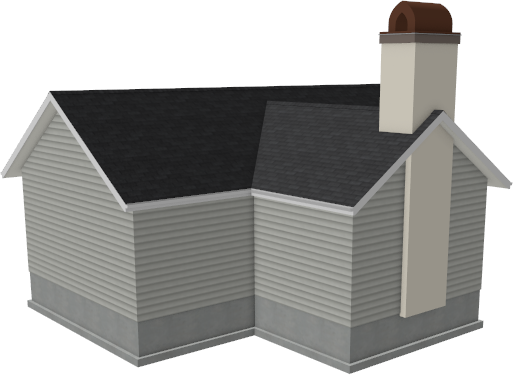
Notice that the chimney displays a beige sheetrock material. You can select a more appropriate material for the chimney right here in this view.
Materials for different objects can be selected at any time. A great way to choose materials is in a 3D Full Camera view using the Material Painter and Material Eyedropper tools.
To apply materials to the fireplace and chimney
- In the camera view displaying the chimney created above, select 3D> Material Painter> Material Painter
 to open the Select Material dialog.
- Browse into Core Catalogs> Materials to find an attractive material for your chimney. The Masonry & Stone category and the Cultured Stone® Manufacturer catalog are two good places to browse for brick, block and stone materials.
For information on downloading manufacturer and bonus catalogs, please see the Related Articles section.
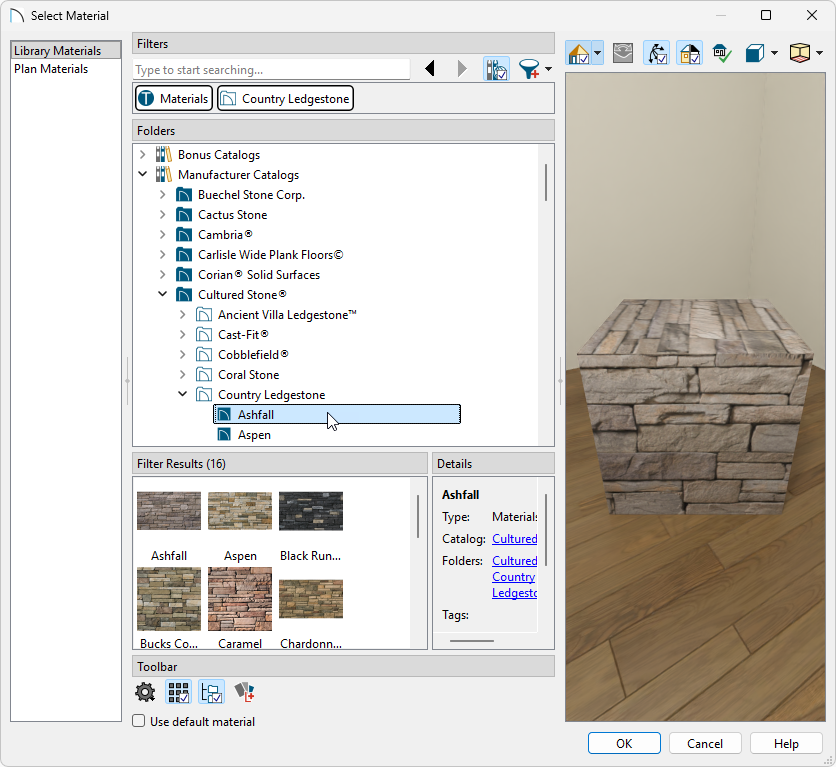
- Click on a material to select it, then click the OK button to close the dialog. Your cursor will now display the Material Painter
 icon.
icon.
- Click on the chimney to apply your selected material to this object.
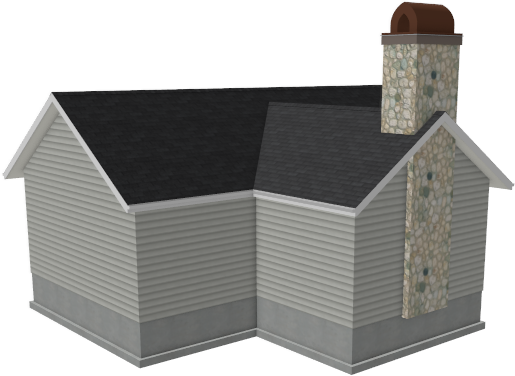
- Now, apply new materials to the fireplace, mantel, and hearth inside the model. Select File> Close View to close the camera view and return to floor plan view.
- Select 3D> Create Perspective View> Full Camera
 from the menu and click and drag a camera view of the fireplace inside the model. As before, use the Material Painter tool to apply new materials to the objects in your view.
In legacy products Home Designer Suite and Home Designer Architectural, select 3D> Create Camera View> Full Camera instead.

- Once you select a material in the Select Material dialog and click OK, you can click on as many objects as you like to apply the selected material to each.
- To apply a different material, select 3D> Material Painter> Material Painter and choose a new material from the Select Material dialog.
- If you would like to apply a material on one object to a different object in the view, select 3D> Material Painter> Material Eyedropper
 , click on the first object to load the desired material and then click on the second object to apply it.
- Once you select a material in the Select Material dialog and click OK, you can click on as many objects as you like to apply the selected material to each.
- Select File> Close View to close the camera view and return to floor plan view.
To apply materials to the chase walls and fireplace surround
- Click on the wall that defines the front of the chimney chase 'room' to select it, and then click the Open Object edit button.
- On the Materials panel of the the Wall Specification dialog, click on the words Interior Wall Surface, then click the Select Material button and browse the Materials library to find the material you prefer.
- If you would like to, repeat this process with the walls defining the sides of the chase 'room.'
- To create a surround for the fireplace opening, begin by placing a Soffit in your plan.
- With the soffit selected, use the edit handles to reduce its width to one inch or so, depending on the material you would like to use for your surround, then use the Move edit handle to position the soffit directly against the front wall of the chase.
- Select 3D> Create Camera View> Elevation from the menu and drag a camera view in the direction of the window and screen, keeping the camera arrow perpendicular to the front wall.

In this view:
- Click on the soffit to select it and click the Copy/Paste
 edit button. Click once in an empty area of the front wall of the chase to create a copy of the soffit. Then repeat these steps to create a second copy in another empty area.
- Click the Select Objects
 tool and edit the size, shape and location of each soffit so that they form a complete surround for the fireplace opening.
- Select 3D> Material Painter> Material Painter from the menu and apply the desired material to the soffits forming your fireplace surround.
- Click on the soffit to select it and click the Copy/Paste