Creating a Split Level Entry with a Landing
Pro | Architectural | Suite
QUESTION
I need to design a split level entry for my plan. How do I do this?

ANSWER
A split level entry typically consists of a landing with stairs leading down to the floor below and stairs leading up to the main floor. This type of design can easily be created in Home Designer using the Build Foundation and U-Shaped Stair tools.
To create each floor level
- With the file you'd like to create the split level entry open, select Build> Floor> Build Foundation
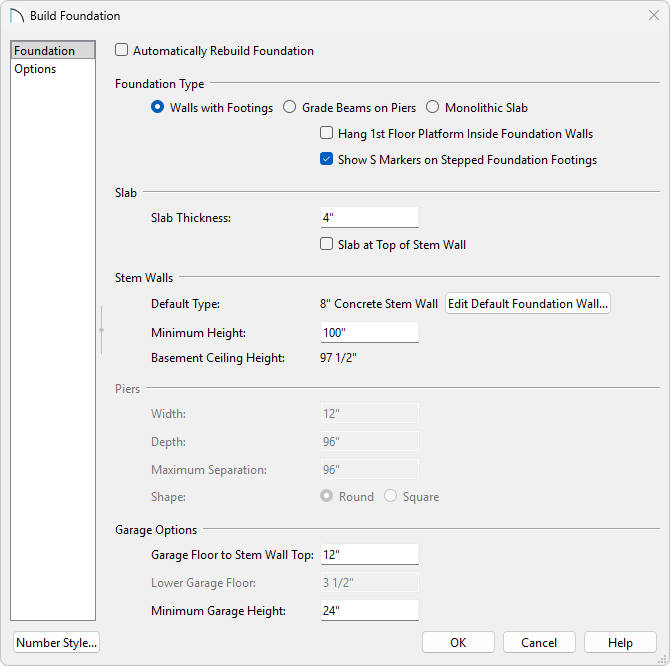
 from the menu, and in the Foundation Defaults dialog:
In this example we will be using a 30' x 40' structure.
-
Uncheck Automatically Rebuild Foundation.
-
Select Walls with Footings for the Foundation Type.
-
Specify a Minimum Height sufficient for a full height basement.
In this example, 100" is used, which includes a 4" slab.
-
Click OK.
-
Uncheck Automatically Rebuild Foundation.
-
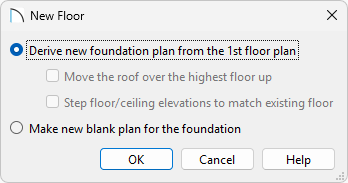
In the New Floor dialog that displays next, select Derive new foundation plan from the 1st floor plan, then click OK.
-
Your foundation should now look like the following image:

To create the staircase
-
While Floor 0 (foundation) is the active floor, select Build> Stairs> U-Shaped Stairs
 , and in the New Shaped Staircase dialog that displays, choose the Default Direction, specify a Gap value if desired, then click OK.
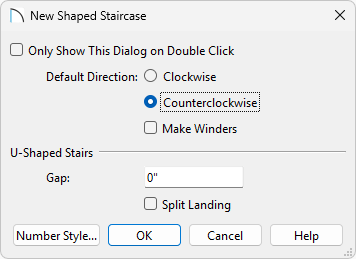
- You will notice that a U-shaped staircase is now following your cursor. Hover the cursor along the wall that will be used for the entry, move the cursor towards the center of the structure until the landing is oriented correctly, then click to place the staircase.
With the staircase in place, we are ready to modify the foundation wall for the door that will be placed later on.

- Select the foundation wall that the landing is against, select the Add Break
 edit tool, then place two break points where the landing meets the foundation wall.

- Using the Select Objects
 tool, select the wall section that is against the landing, then click the Open Object
  edit button to open the Foundation Wall Specification dialog.
- Navigate to the Wall Types panel, change your Wall Type to the Siding-6 Wall Type, and click OK.
In legacy Home Designer Suite and Home Designer Architectural, you can change the Wall Type on the General panel.
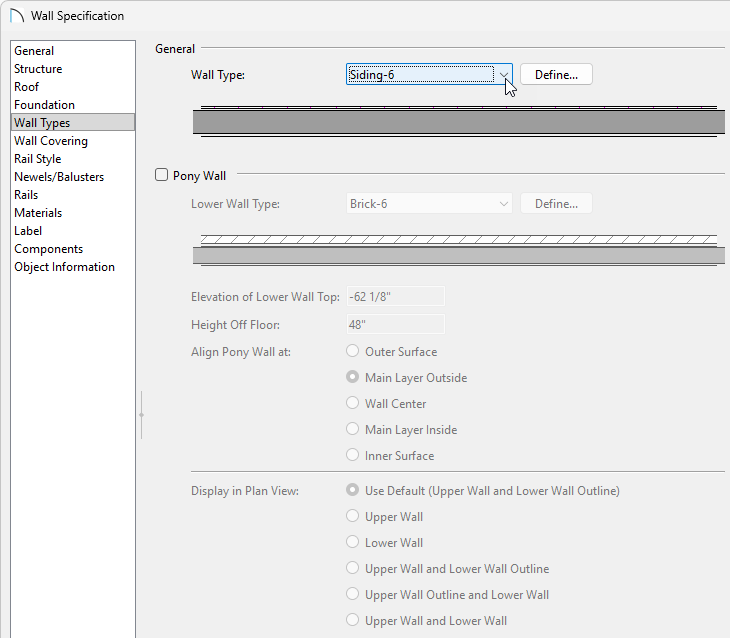
You can also specify the wall as a Pony Wall, giving you the option to define two separate wall types for a single wall. Please see the "Creating a Split Material Wall" resource in the Related Articles section below.
This feature is not available in legacy Home Designer Suite.
- Select the landing and move it so it meets up with the Siding-6 wall. You will notice that each stair connected to the landing will move as well.

-
With the staircase now in place, select one of the stair sections and click the Auto Stairwell
 edit button to generate a stairwell on the 1st floor.
-
We will now enclose the entryway. On Floor 0 (foundation), navigate to Build> Wall> Interior Wall
 , then draw interiors walls on either side of the landing, as well as any walls underneath the staircase.
Note: To ensure that the interiors walls are aligned with the stairwell railings that were created automatically in step 6 above, select each one after it is placed, and click the Align With Wall Above edit tool.

- To remove any railings still present on the landing, use the Select Objects tool, select the edge of your landing, and use the Open Object edit tool to open the Stair Landing Specification:
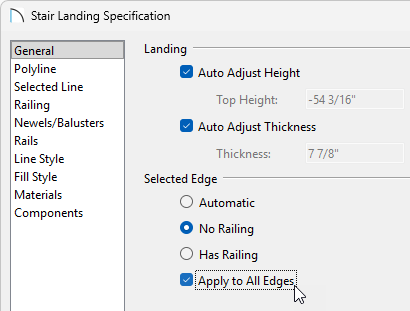
- Underneath the Selected Edge section choose No Railing.
- Check the Apply to All Edges checkbox.
- Click OK.
Railings that are part of a staircase can also be controlled by accessing the Railings panel located in the Staircase Specification dialog.
- Underneath the Selected Edge section choose No Railing.
-
Select Up One Floor
 to go up to Floor 1, select Build> Door> Hinged Door
  , and place a door on the wall the landing is up against. Once placed, Open it to specification, and adjust the Floor to Bottom value so it lines up with the landing.
-
Take a Camera
 view to see the results.
