Printing a Plan at a Specific Scale
Pro | Architectural | Suite
QUESTION
How do I print a plan to scale and what does it mean to have a plan printed to scale?
ANSWER
Printing to scale allows you to measure the printed drawing to obtain the distance between points. This is useful on a drawing where you may not have dimensions for every little detail.
If you choose 1/4 inch per foot when printing, then when you measure the drawing later you can multiply the number of inches by 4 to obtain the number of feet between two points. Both plan and vector elevation views created in Home Designer can be printed to an architectural scale specified in the Print dialog.
Home Designer 2026 and legacy Home Designer Pro have the option of creating layout files, of which contain separate sheets to which you can send views to at a particular scale and print from. If using either of these products we would recommend creating a layout file instead. Please see the Related Articles for further information.
To print a plan view to scale
- Select File> Print> Drawing Sheet Setup
 from the menu to display the Drawing Sheet Setup dialog.
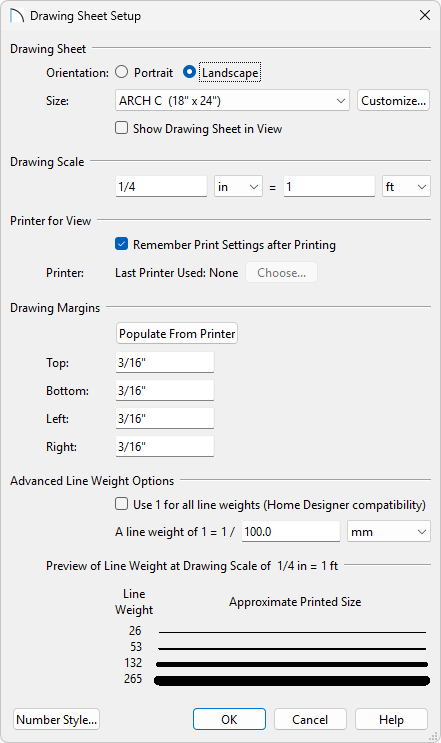
- Under the Drawing Scale option, type in the scale at which you want to print. Use the drop-down menus to change the units, then click OK to apply the change.
- Select File> Print> Print Preview
 , then select Window> Fill Window
  to see how the plan will be printed on the paper.
- If desired, select File> Print> Center Sheet
 to center the created content on the sheet, or select the edge of the drawing sheet to select it, then use the Move
  edit handle to place it where you want in relation to the drawing.
- Select File> Print> Print
 , and in the Print View dialog that appears, under the Drawing Scale heading, make sure the To Scale radio button is selected. Your specified scale will be listed here as well.
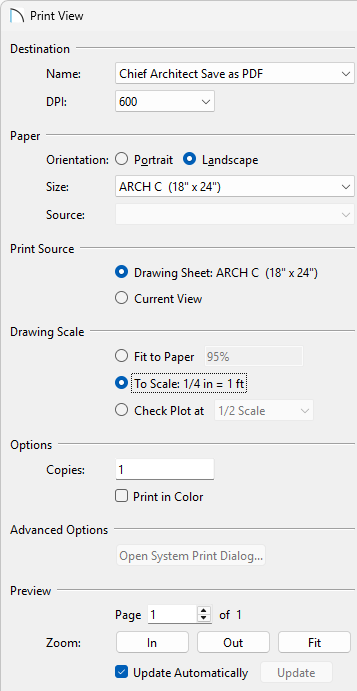
- Select the Print button to print your plan to scale to your desired printer.
If you're wanting to create a PDF, choose the Chief Architect Save As PDF option from the Destination Name drop-down, click the Save As PDF or Save to Project/Assets button, and choose where to save what to name your PDF.
To print an elevation view to scale*
*Applies to Home Designer 2026 and legacy Home Designer Pro only.
- Select 3D> Create Orthographic View> Cross Section/Elevation
 .
.
- Click within the plan and drag the camera toward your structure. Once you release the mouse, Home Designer Pro will create a cross section/elevation of your model.
- Once the cross section view has generated, select File> Print> Print from the menu and print the view at the scale that is set in the Drawing Sheet Setup dialog, or navigate to File> Send to Layout
 and send the view to a layout sheet at a specific scale.