Kitchen & Bath Design
Design Your New Kitchen or Bath Today
Why go to a big box store to design your new kitchen? Use Home Designer by Chief Architect to first visualize your kitchen design ideas before you build or remodel and save time and money on your next project!
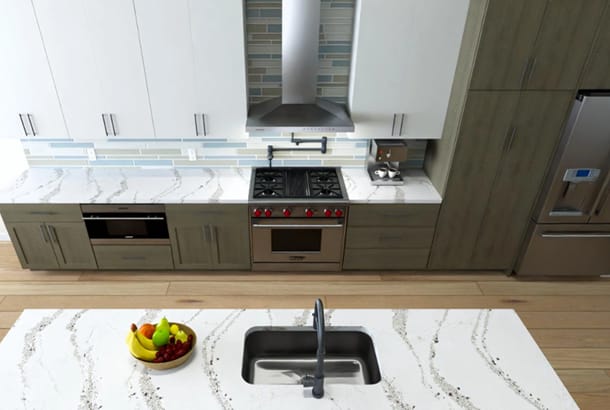

Cabinet Software Design Tools
Choose from over 1,000 cabinet combinations to create any kitchen or bath style. Find a variety of cabinet styles for base cabinets, wall cabinets, full height, angled and corner cabinets. Change the wood species, stains or solid colors to visualize your new kitchen in 3D. It's fun & easy!
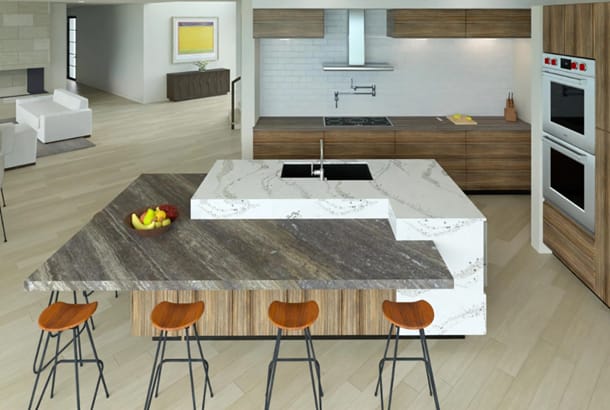
Remodel Your Countertops
Update your kitchen or bath with new countertops. Choose granite, tile, laminate or a solid surface. Define the backsplash material, apply countertop edge profiles from the built-in catalog Library. Your countertop choices are limitless.
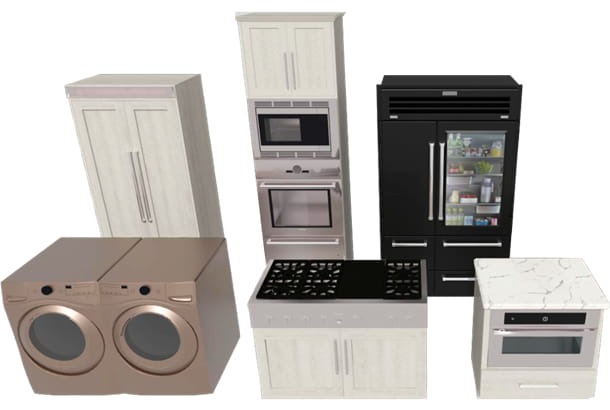
Appliances & Fixtures
The secret to a great kitchen is to combine good planning and design before you begin. Choose from a wide variety of appliances and size to your space. Select name-brand appliances or import specific brands to create the kitchen of your dreams!
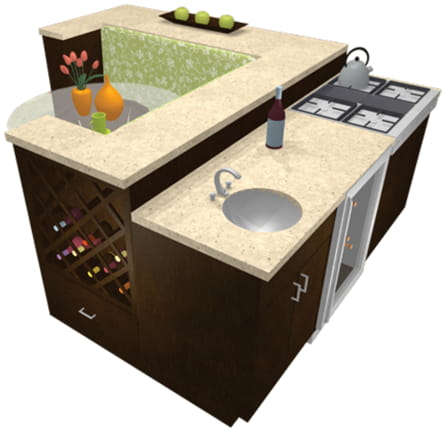
Kitchen Islands
Mix and match cabinet styles to create the perfect kitchen island. The software has several sample kitchen islands or use the Cabinet Designer tools and create your own custom kitchen island for an ideal kitchen layout.
Design a New Bath
Remodeling your Bath? Use Home Designer to visualize before you begin. Experiment with room size, materials, cabinets, and fixtures using a built-in catalog of architectural elements.
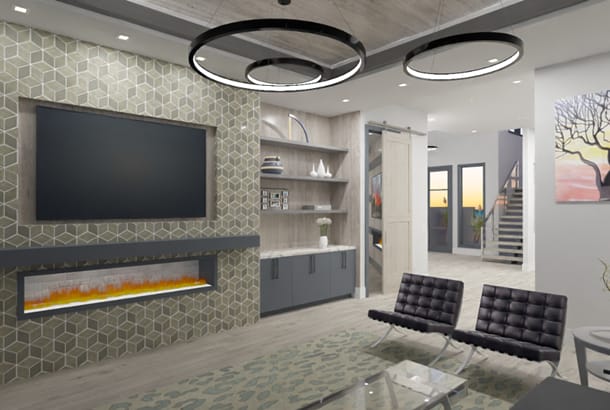
3D Visualization of Your Rooms
Create 3D models and virtual tours in minutes. Often the most challenging part of designing or remodeling is visualizing how your finished project will look. Choose from different camera angles to see your design from every viewpoint.
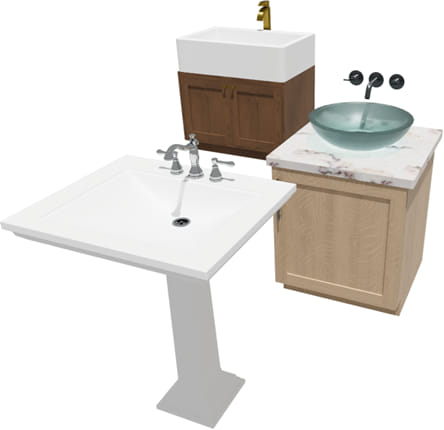
Fixtures & Accessories
Browse furniture, fixtures and accessories to complete your designs. Resize to create any custom size—change the height, width and depth. Download additional free content from our 3D Library.
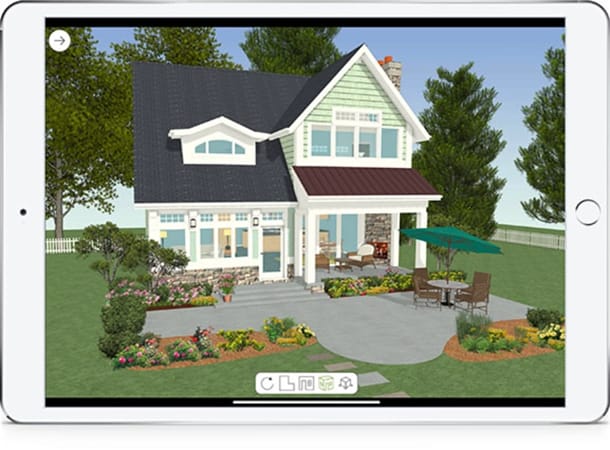
3D Viewer Models
Export your Home Designer model and view on phones, tablets or the web. 3D Viewer models are interactive virtual reality models. For mobile, download the free Chief Architect 3D Viewer app—available for Apple or Android devices. 3D Viewer models can also be viewed from a web browser—Learn How.